Grok Video Generator: Text and Image to Video on Omnely Credits
Grok video generator on Omnely: Grok Imagine Video 1.5 text-to-video and image-to-video at 6 credits per second (720p), with real use-case prompts and outputs.
The grok video generator on Omnely is Grok Imagine Video 1.5 Preview from xAI, available inside the Omnely web app. Type a prompt or add one reference image, pick a duration between 1 and 15 seconds, and render at 480p, 720p, or 1080p. The rate is 6 credits per second at 720p (so a default 8-second clip is 48 credits), and no X account, X Premium, or SuperGrok subscription is needed — everything runs on the same Omnely credit balance used for chat and image.
| Setting | Value |
|---|---|
| Modes | Text to Video, Image to Video (1 optional reference image) |
| Duration | 1–15 seconds (default 8 s) |
| Resolution | 480p, 720p, 1080p (default 720p) |
| Aspect ratios | 1:1, 16:9, 9:16, 4:3, 3:4, 3:2, 2:3, auto |
| Price at 480p / 720p | 6 credits per second |
| Price at 1080p | 20 credits per second |
| Reference images | 0 or 1 (upload or drag) |
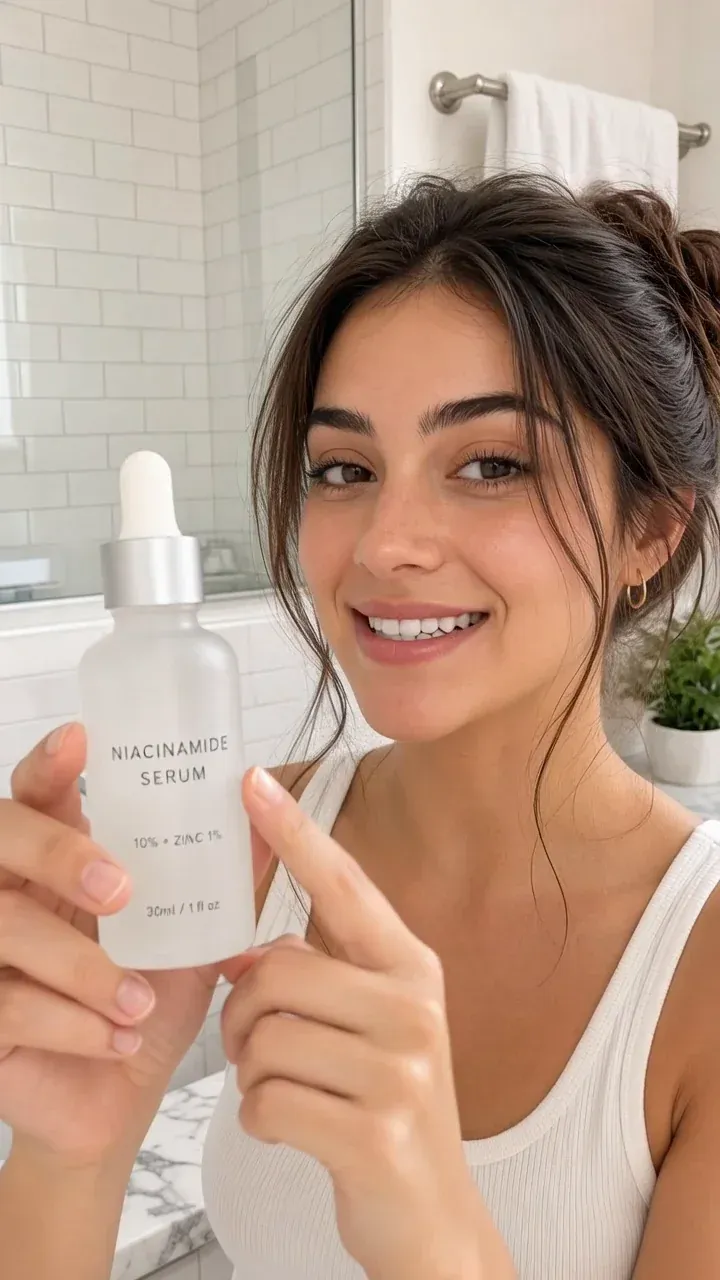
Handheld UGC-style selfie video for TikTok: a young woman in a bright bathroom holds a frosted glass serum bottle up to the camera, taps it twice with her finger and smiles, natural phone-camera look, soft daylightSettings: Grok Imagine Video 1.5, Text to Video, 720p, 9:16 — 6 credits per second.
Frame from a Grok Imagine Video 1.5 clip on Omnely: Text to Video, 720p, 9:16, 6 credits per second.
Run this prompt in Grok Imagine Video 1.5 on Omnely, or read the Grok Imagine model page.
How the Grok video generator works on Omnely
The grok video generator lives inside the Omnely video workspace and uses the shared credit balance, so there is nothing extra to connect.
- Go to the Omnely video workspace and pick Grok Imagine Video 1.5 Preview from the model dropdown.
- Type a prompt (up to 5,000 characters), or drag in one reference image to switch into image-to-video mode.
- Choose duration (1–15 s), aspect ratio, and resolution (480p, 720p, or 1080p).
- Click Generate.
Text to Video turns a written description into a fresh clip. Image to Video keeps the look of your reference frame and animates it with the prompt you provide — this is how the grok ai video generator handles continuity between a still and motion.
No X account, X Premium, or SuperGrok subscription is needed. Credits come from the same Omnely balance that powers chat and image generation. The example clips rendered for this post came back with an audio track (ambient sound), though dialogue and lip-sync are not promised.
Grok video use cases with real prompts
Four short briefs below show where grok imagine video earns its keep: product ads, travel reels, animated family photos, and pet memes. Every prompt is copy-ready with its exact settings and credit cost.
Product ads and UGC clips
For small brands and affiliates who need a vertical TikTok-style demo in under a minute.
Handheld UGC-style selfie video for TikTok: a young woman in a bright bathroom holds a frosted glass serum bottle up to the camera, taps it twice with her finger and smiles, natural phone-camera look, soft daylightSettings: Grok Imagine Video 1.5, Text to Video, 720p, 9:16 — 6 credits per second.
The frame from this clip is the first image in the post, right under the settings table.
Tip: name the product shape ("frosted glass serum bottle") and one gesture ("taps it twice") so the model has something concrete to animate.
Social reels and travel shots
For creators who need a cinematic opener for a vlog, newsletter header, or paid social reel.
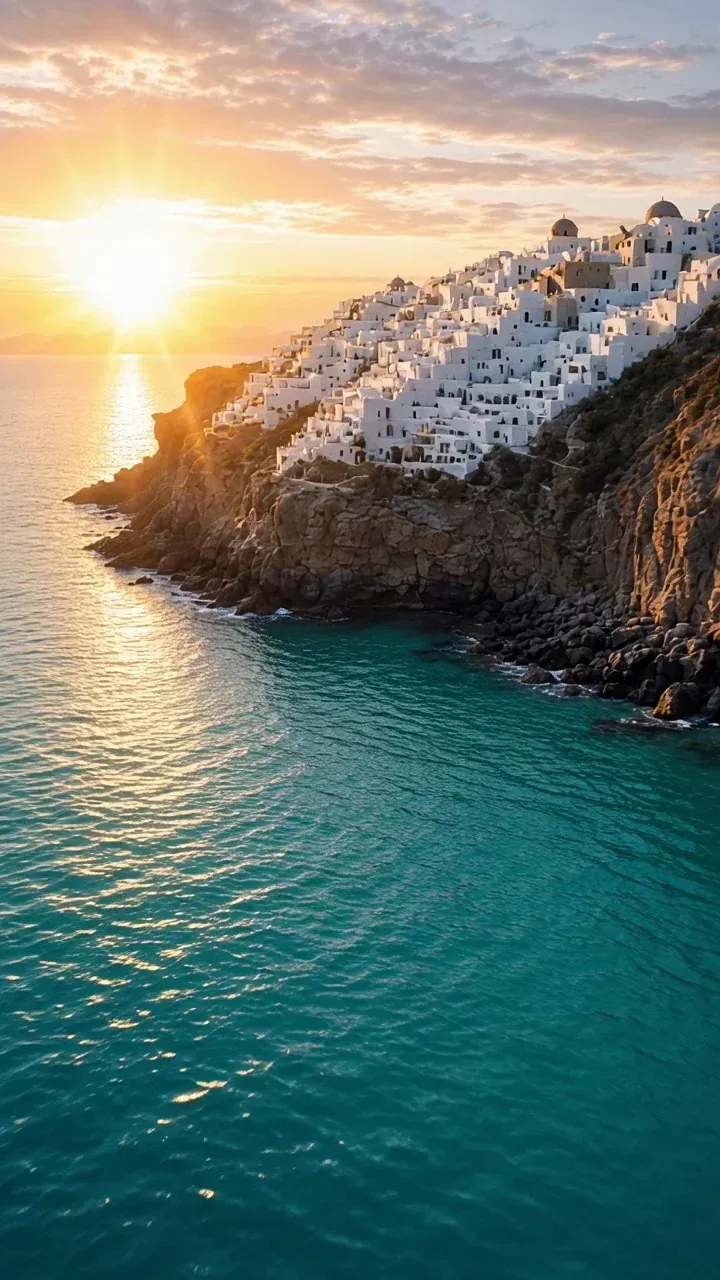
Fast cinematic drone shot rushing low over turquoise water toward a white cliffside village at sunrise, golden light and lens flare, smooth forward motion, travel reelSettings: Grok Imagine Video 1.5, Text to Video, 720p, 9:16 — 6 credits per second.
Frame from a Grok Imagine Video 1.5 clip on Omnely: Text to Video, 720p, 9:16, 6 credits per second.
Tip: one camera move per clip. "Rushing low" and "smooth forward motion" describe the same move; stacking a pan on top usually muddies the result.
Grok image to video: animate a photo
For anyone who wants to bring a still photo to life. This is the grok image to video flow: generate (or upload) a start frame, then feed it to Grok Imagine Video 1.5 with an animation prompt.
Step 1 — Start frame in Nano Banana 2.1:
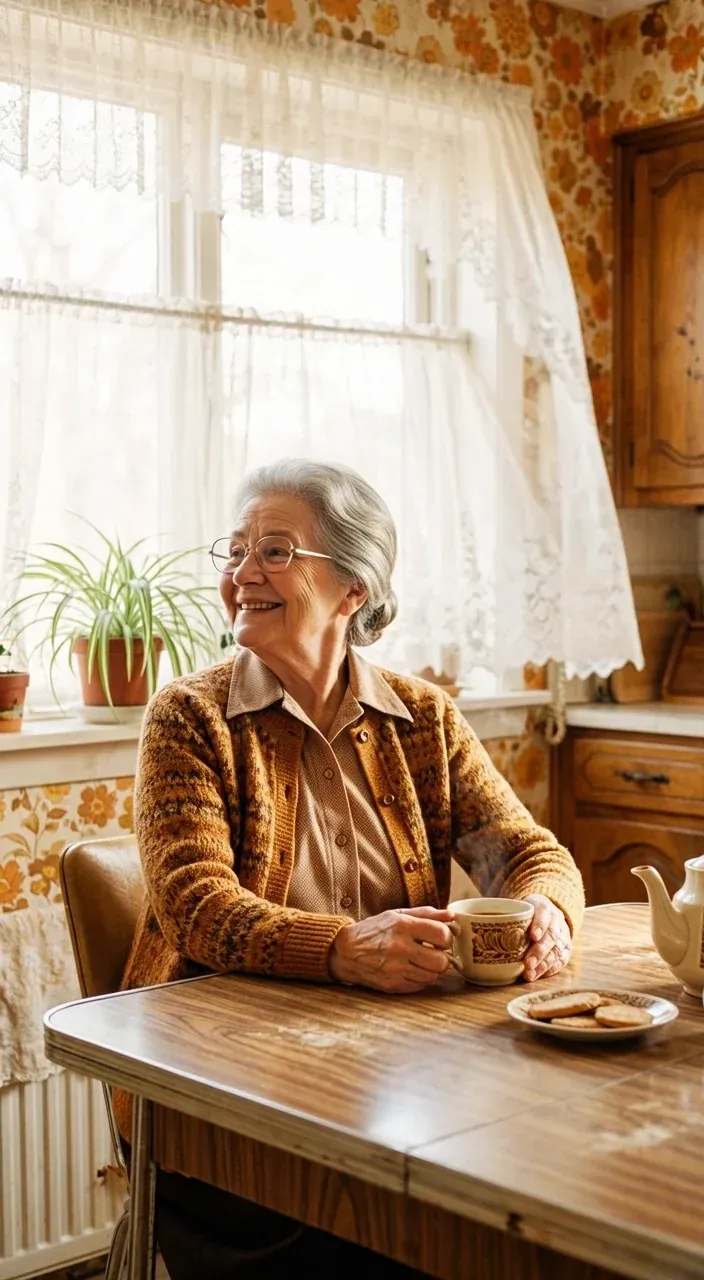
Warm 1970s-style family film photo: a smiling grandmother with silver hair sits at a sunny kitchen table holding a cup of tea, lace curtains behind her, soft window light, natural film grain, faded colors, photorealistic, vertical 9:16, no text, no watermarkSettings: Nano Banana 2.1, Text to Image, 9:16, 1K — 8 credits.
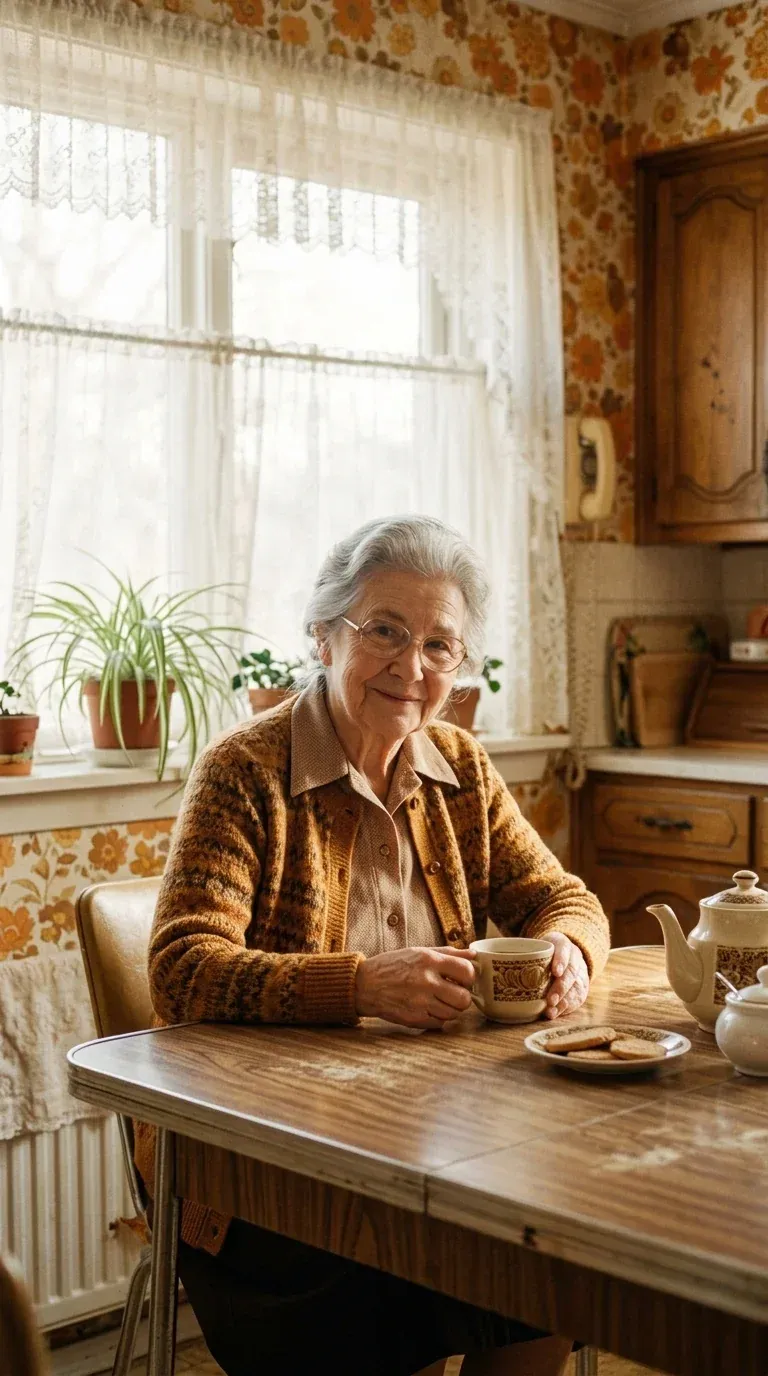
Start frame made with Nano Banana 2.1 on Omnely: Text to Image, 9:16, 1K, 8 credits.
Step 2 — Animate on Grok Imagine Video 1.5, with the still from Step 1 attached as the reference:
The grandmother laughs warmly and turns her head toward the window, the lace curtains sway in a light breeze, steam rises from the tea, gentle handheld camera, keep the film grainSettings: Grok Imagine Video 1.5, Image to Video (reference = Step 1 frame), 720p, 9:16 — 6 credits per second.
Frame from the animated photo: Grok Imagine Video 1.5, Image to Video from the still above, 720p, 9:16, 6 credits per second.
You can also upload your own photo instead of generating one — just use photos you have the rights to, and only animate people who agreed to it. For another image-to-video route, see the Kling image to video guide.
Pets and memes
For meme accounts and small creators chasing shareable loops.
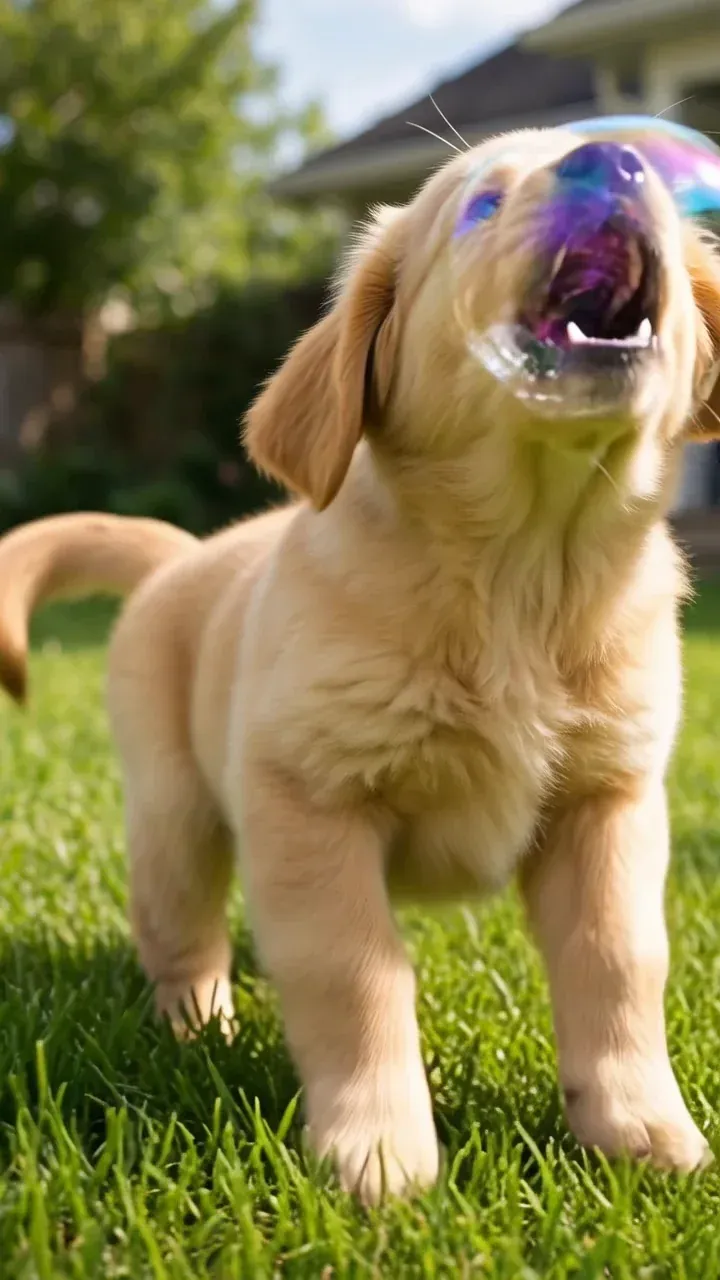
A golden retriever puppy in a sunny backyard chases a floating soap bubble, the bubble pops on its nose, the puppy freezes and stares into the camera with a confused deadpan look, reaction meme moment, shallow depth of fieldSettings: Grok Imagine Video 1.5, Text to Video, 720p, 9:16 — 6 credits per second.
Frame from a Grok Imagine Video 1.5 clip on Omnely: Text to Video, 720p, 9:16, 6 credits per second.
Tip: end on a held reaction beat ("freezes and stares into the camera") so the final frame loops cleanly when the clip is set to repeat on social.
What a Grok video costs in credits
The rate is simple: 6 credits per second at 480p and 720p, 20 credits per second at 1080p. The table below shows the common duration × resolution combinations.
| Duration | 480p | 720p | 1080p |
|---|---|---|---|
| 3 s | 18 | 18 | 60 |
| 5 s | 30 | 30 | 100 |
| 8 s (default) | 48 | 48 | 160 |
| 10 s | 60 | 60 | 200 |
| 15 s | 90 | 90 | 300 |
Every clip in this post was rendered at 720p, so each one cost 6 credits per second of video. The Nano Banana 2.1 start frame for the animated photo added 8 credits.
For comparison, Kling 3.0 on Omnely runs at 12 credits/second standard silent and 18 credits/second standard with audio (Pro: 17 silent / 24 with audio). Details on the Kling 3.0 model page.
Prompt tips for Grok video
- Lead with subject + action + one camera move + light + mood. "Puppy chases bubble, slow dolly in, soft daylight, playful" beats a wall of adjectives.
- Use motion verbs. "Sways," "rushes," "taps," "turns" — concrete motion gives the model something to animate.
- Match the reference image aspect to the video aspect. A 9:16 still animated at 16:9 will crop or letterbox.
- Start short, then extend. Nail the look at 3 seconds (18 credits), then rerun at 8 or 15 seconds once the shot works.
- Describe sound if you want it. Phrases like "soft breeze," "tea steaming," "crowd murmur" nudge the audio track that renders alongside the clip.
More recipes: Grok Imagine prompts and how to use Grok Imagine.
Grok video generator FAQ
Do you need X Premium or SuperGrok to use this?
No. Grok Imagine Video 1.5 runs on Omnely credits inside the Omnely web app. No X account, X Premium, or SuperGrok subscription is required.
How long can a Grok video be?
Any length from 1 to 15 seconds in a single render. The default is 8 seconds.
Can Grok turn an image into a video?
Yes. Switch to Image to Video and attach one reference image (upload or drag). The grok video keeps the look of the reference while following your animation prompt.
How much does it cost?
6 credits per second at 480p and 720p (so 3 s = 18 credits, 8 s = 48 credits), and 20 credits per second at 1080p. New users get free credits when they sign up on Omnely.
Ready to render? Open Grok Imagine Video 1.5 on Omnely, or compare it on the Grok Imagine model page.