How to use Grok Imagine
Learn how to use Grok Imagine on Omnely for text-to-video and image-to-video — modes, durations, pasteable prompts, and failure patterns to design around.
Grok Imagine is xAI's short-form video model, and the fastest way to learn how to use Grok Imagine without juggling accounts, waitlists, or API keys is inside Omnely's Grok Imagine model page. It runs in your browser, generates in seconds, and shares credits with every other video, image, audio, and chat model on the platform.
This guide covers the two ways to drive it (text-to-video and image-to-video), the modes and durations that actually matter, pasteable prompts you can copy into the composer today, and the specific failure patterns to design around.
What Grok Imagine does on Omnely
On Omnely, Grok Imagine runs as Grok Imagine Video 1.5 Preview with two input modes and three creative modes:
- Text-to-video (t2v): describe a scene and Grok Imagine renders a short clip from scratch.
- Image-to-video (i2v): upload a still frame into the IMG slot, then describe the motion you want applied to it.
- Durations: 6 seconds or 10 seconds.
- Creative modes: Normal, Fun, and Spicy — these shift how expressive or exaggerated the motion feels.
- Resolution & credits: 6 credits/second at 480p and 720p, 20 credits/second at 1080p. A 6-second 720p clip is 36 credits. A 10-second 720p clip is 60 credits. A 10-second 1080p clip is 200 credits. (Live checkout: 6 credits/second at 480p and 720p, 20 credits/second at 1080p.)
Because Omnely uses a shared credit pool, you can prototype a shot with Grok Imagine and then re-render the winning idea in a higher-fidelity model like Veo 3.1 or Kling 3.0 without leaving the workspace. See the full lineup on the Omnely Video page.
How to run a text-to-video prompt
For t2v, Grok Imagine wants a clear *subject*, one *motion beat*, a *camera behavior*, and a hint of *atmosphere and audio*. Skip the essay — a single sentence with those four elements consistently beats a paragraph of scene description.
A reliable formula:
Subject + Action + Camera move + Lighting/Atmosphere + Audio cue
Paste this into the Grok Imagine composer as a starting point:
A steaming ceramic mug of black coffee on a wooden café table by a rain-streaked window. Slow push-in on the mug as steam curls upward. Warm morning light, soft focus on the background. Ambient rain and distant café chatter. 6 seconds, cinematic.Product marketing variant:
A matte black wireless earbud case on a white marble surface. The lid slowly opens, revealing the earbuds inside. Locked-off overhead shot, soft studio lighting, subtle mechanical click sound. 6 seconds, clean and minimal.Short social variant:
A neon-lit ramen bowl on a wet Tokyo street at night. Camera orbits slowly around the bowl. Steam rising, reflections of pink and blue signs. Sizzling broth and faint city hum. 6 seconds, moody cyberpunk.Notice what these prompts do *not* do: they don't try to choreograph three separate actions, and they don't overload adjectives. One subject, one motion, one atmosphere.
How to use Grok Imagine from a still (image-to-video)
Image-to-video is where Grok Imagine tends to shine on Omnely. Because you're pinning the composition with a real image, the model can spend its budget on *motion* instead of trying to invent every pixel.
The workflow inside the Grok Imagine composer:
- Drop a clean, well-lit still into the IMG slot (JPG, PNG, or WebP). Portrait or landscape both work — match your final aspect ratio.
- Pick 6s or 10s duration and a mode (start with Normal).
- Write a prompt that describes only what should move, plus camera behavior and any audio cue.
- Generate. If the motion is too subtle, re-run in Fun mode. If it's chaotic, drop back to Normal.
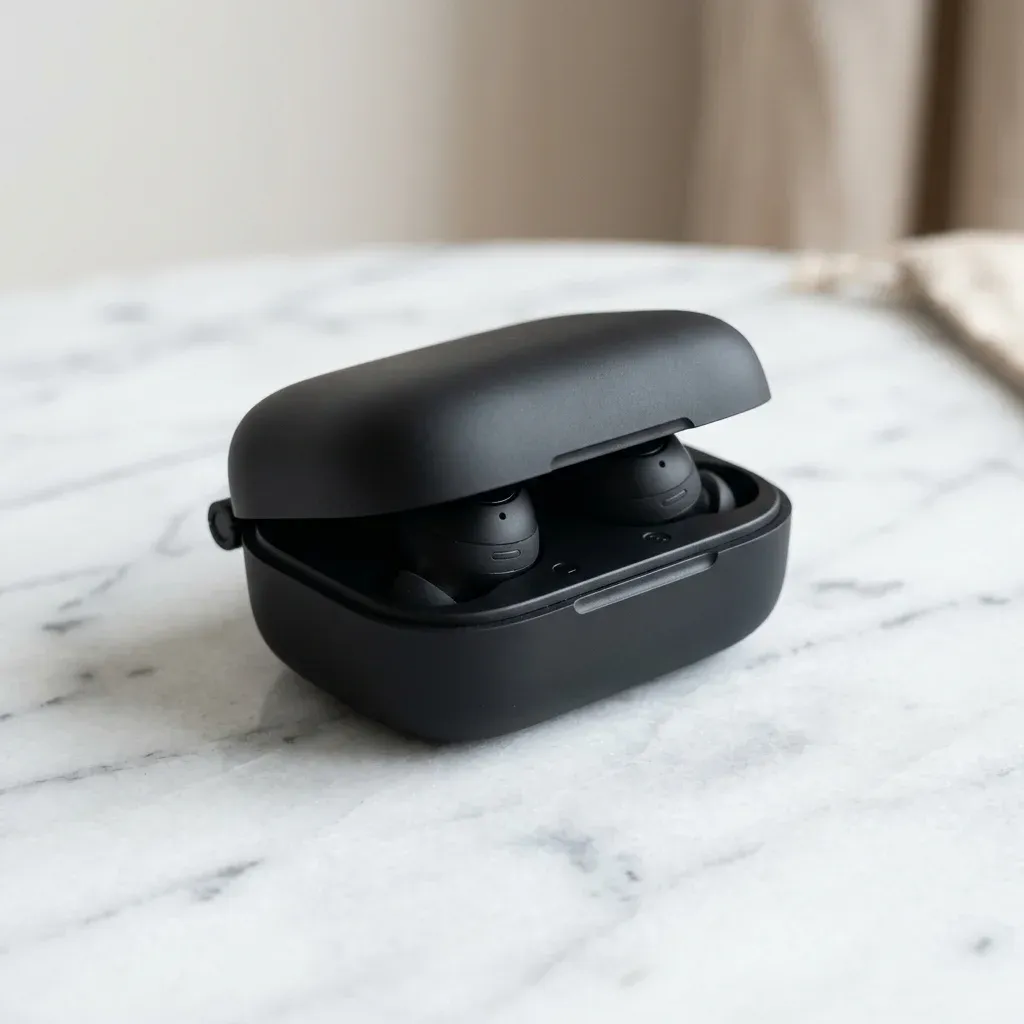
Use this still as frame one. Prompt only the motion:
Pasteable i2v prompts you can adapt to your own start frame:
Camera slowly pushes in on the subject. Hair moves gently in a soft breeze. Eyes blink naturally. Ambient outdoor sound. Keep background stable. 6 seconds.Locked-off camera. The liquid inside the glass swirls slowly as if just poured. Light glints across the surface. Subtle pouring sound at the start. Keep the label sharp and readable. 6 seconds.Slow parallax pan from left to right across the scene. Clouds drift in the background. Foreground elements stay steady. Distant wind and birds. 10 seconds.Key rule: don't re-describe the image. The model already sees it. Describe the *delta* between frame one and the end of the clip.
Modes and duration
The three creative modes shift the temperament of the motion, not the subject matter. Use them as dials, not switches.
| Mode | Best for | Watch out for |
|---|---|---|
| Normal | Product shots, realistic scenes, subtle character motion, most commercial work | Can feel underplayed for entertainment content — bump to Fun if it's too static |
| Fun | Social media, character animations, stylized reveals, exaggerated motion | May introduce more camera whip and unexpected embellishment |
| Spicy | Bolder creative direction and looser interpretation of the prompt | Less predictable — always review before publishing, and avoid for brand-safe deliverables |
Duration is a creative choice, not just a budget one:
- 6 seconds — one motion beat. Ideal for social loops, product reveals, and idea testing. A 6s 720p clip costs 36 credits.
- 10 seconds — room for a short arc (setup → action → settle). Better for hero shots and openers. A 10s 720p clip costs 60 credits; at 1080p it is 200 credits.
A practical pattern: prototype at 6s / 720p, then re-render the winner at 10s / 1080p once the composition is locked. That way you spend most of your credits on shots you've already validated.
What breaks (and how to design around it)
Grok Imagine Video 1.5 is a preview model, and the failure modes are predictable enough that you can prompt around most of them.
Mushy motion on complex subjects
If a subject has intricate detail (fine hair, thin lettering, fingers gripping an object), rapid motion will smear it. Fix: keep the camera and subject motion slow, or lock one of them. "Slow push-in with the subject nearly still" is far more forgiving than "quick pan while the subject turns."
Looping or reverse motion
Short clips sometimes end near their start pose, which reads as a loop. If you don't want that, name an *end state* in the prompt: "…ending with the lid fully open," "…settling into a wide two-shot," "…the steam finally dissipating."
Background drift in i2v
When the model over-interprets, backgrounds can warp. Fix: add "keep background stable" or "locked-off camera" to your prompt, and start from a still with a simple, clean background.
Text and logos breaking down
Grok Imagine is not a text-in-video specialist. For logo-forward product shots, keep the logo static (locked camera, no zoom across the logo) or generate the still in a text-capable model like Ideogram V3 first, then animate the surrounding scene rather than the mark itself.
Audio that doesn't match
Native audio is generated with the clip, but it's ambient — think room tone, footsteps, mechanical sounds, not dialogue. For voiceover, layer ElevenLabs Multilingual on top in post.
When to reach for a different model
Grok Imagine is a fast, expressive starting point. It's not the right tool for every shot. A rough decision guide inside Omnely:
- Need cinematic realism or longer takes? Try Veo 3.1. Veo 3.1 Fast is 40 credits for an 8s 720p clip on checkout.
- Need clean, controlled motion for a product ad? Kling 3.0 (12 credits/second std silent on checkout).
- Fast iteration on ideas? Grok Imagine or Veo 3.1 Fast — cheap enough to run five variations before committing.
All of them draw from the same credit pool, so switching models mid-project is a click, not a migration.
Try it
Open the Grok Imagine model page, drop a still into the IMG slot or type a scene, and generate your first 6-second clip. If you want to compare it against Veo 3.1, Kling, and Wan side by side on the same prompt, everything lives together on the Omnely Video page.