Kling image to video
Turning a still photograph into a moving shot used to require a camera crew. This guide covers how to animate a still with Kling: start frames, motion-first prompts, Standard vs Pro, duration, and how to fix warped hands, morphing faces, and floaty backgrounds.
Turning a still photograph into a moving shot used to require a camera crew, a dolly, and a colorist. Today, kling image to video collapses that pipeline into a single upload, a prompt, and a few seconds of render time. This guide walks through exactly how to animate a still with Kling — what to feed it, how to phrase motion, and how to fix the most common failure modes like warped hands, morphing faces, and floaty backgrounds.
If you want to try the workflow inside a multi-model workspace, Kling 3.0 is available on Omnely alongside chat, image, and audio models under one login.
What kling image to video actually does
Image-to-video (i2v) takes a single reference frame — a photo, an illustration, a screenshot, a Midjourney or Nano Banana render — and generates a short clip that treats your image as frame one. Kling then predicts the next several seconds of motion based on your prompt: camera moves, subject action, environmental change, and (on supported generations) audio.
Unlike text-to-video, i2v locks composition. Your subject's face, wardrobe, lighting, and background stay consistent with the original still. This is why creators use i2v for product spins, portrait animation, atmospheric b-roll, and cinematic storyboards — the look is already dialed in; you're only directing motion.
On Omnely's Kling 3.0 model page, i2v supports:
- Duration: 3 to 15 seconds per generation
- Modes: Standard (Std) and Pro
- Checkout: starts at 12 credits per second in Standard; Pro starts at 17+ credits per second
- Audio: optional native audio on supported generations
- Inputs: upload a starting image and describe motion, camera, and style in the prompt
Pricing scales with duration, mode, and whether audio is enabled. A 5-second Standard clip lands at a very different credit total than a 10-second Pro clip with audio, so plan duration deliberately.
How to animate a still with Kling: the workflow
1. Prepare a clean starting frame
The still image is doing more work than the prompt. If your source is noisy, low-resolution, or has a subject that blends into the background, motion will amplify every flaw.
Best practices for the start frame:
- Export at the final aspect ratio you want (16:9 for landscape, 9:16 for vertical social, 1:1 for square feeds).
- Use a resolution at or above 1024px on the short edge.
- Keep the main subject clearly separated from the background — clean silhouettes animate more predictably.
- Avoid cluttered hands, overlapping fingers, or text near the subject's edges. These are the first areas to warp.
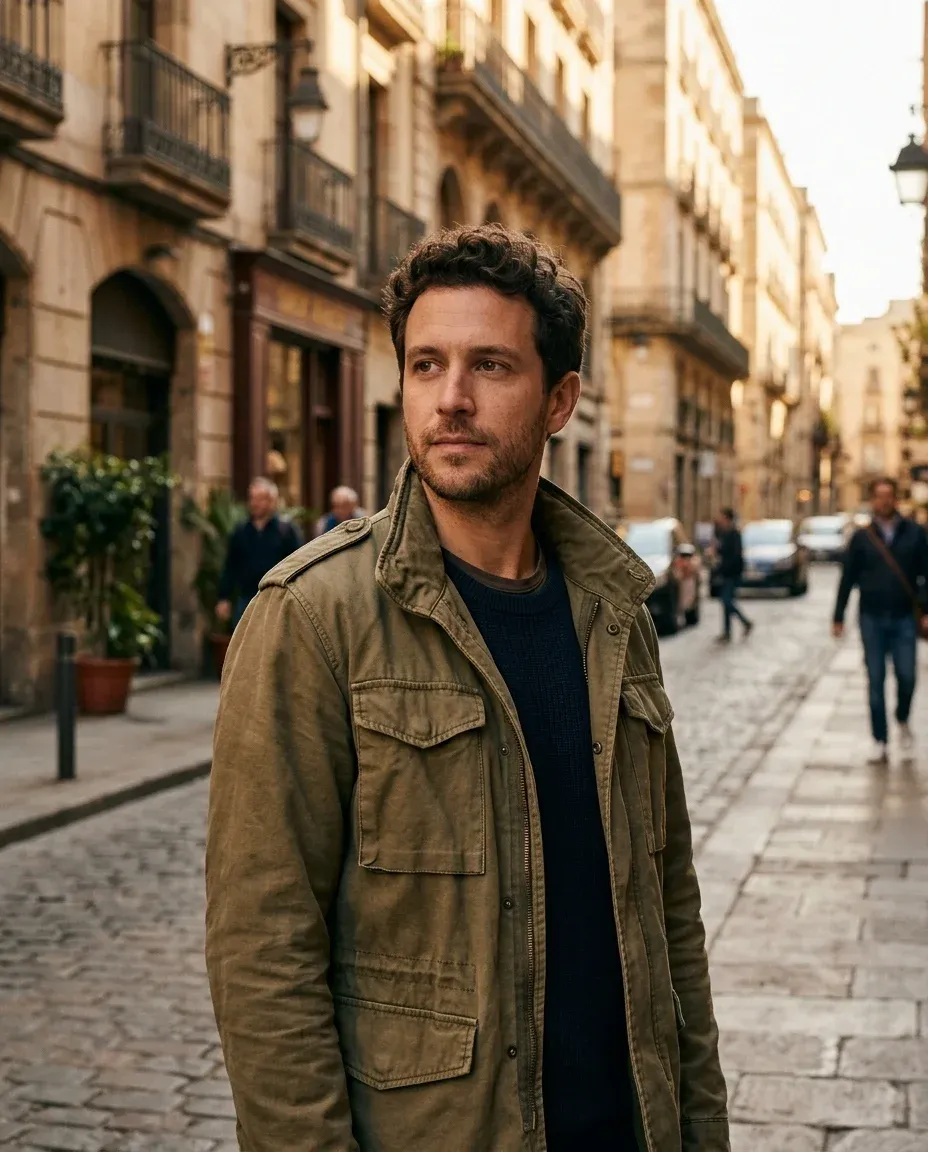
- If the still came from another generator (Nano Banana Pro, Seedream 5.0 Pro, Flux 2 Pro), upscale and crop before uploading.
Kling 3.0
2. Write a motion-first prompt
The single biggest mistake in i2v prompting is re-describing the image. Kling already sees the image. Your prompt's job is to describe what changes over time.
A reliable prompt scaffold:
[camera move] + [subject action] + [environmental motion] + [pace/mood] + [optional audio cue]Pasteable examples:
Slow cinematic push-in on the subject's face. She exhales softly,
eyes tracking left to right. Warm afternoon light flickers as leaves
drift across the frame. Calm, contemplative pace.
Static locked-off shot. The coffee steam rises in slow, curling wisps.
Condensation forms on the glass. Ambient cafe hum in the background.
Realistic physics, no camera movement.Slow orbit clockwise around the product, 15 degrees of rotation total.
Subtle rim-light shift as the camera moves. Studio backdrop remains
perfectly clean. No zoom, no dolly. Smooth constant velocity.Handheld documentary feel. Camera drifts slightly right. The subject
turns his head over his left shoulder, then looks back to camera.
Rain begins to fall behind him. Cold blue tones deepen.Cinematic reveal: camera tilts up from the subject's hands to her face.
She smiles gently as the sunlight breaks through the window behind her.
Gentle piano audio fades in.3. Choose Standard vs Pro deliberately
Standard mode is the workhorse. Pro mode is for shots where motion realism, physics, and identity consistency need to hold up on a large screen.
Rules of thumb:
- Standard: social clips, b-roll, first-pass drafts, quick concept tests, anything under 8 seconds.
- Pro: hero shots, client deliverables, faces in close-up, complex physics (water, fabric, hair), longer durations near the 15-second ceiling.
Because Pro starts at 17+ credits per second versus Standard's 12, a 5-second test in Standard costs meaningfully less than the same test in Pro. Rough out the shot in Standard first, then re-render the keeper in Pro.
4. Set duration to match the motion
Kling generates 3 to 15 seconds per clip. Longer isn't automatically better — it's more room for drift.
| Duration | Best for | Risk |
|---|---|---|
| 3–4 sec | Product spins, expressions, atmospheric loops | Little room for a full action |
| 5–6 sec | Standard b-roll, portrait animation, single camera move | Reliable sweet spot |
| 8–10 sec | Two-beat scenes (subject acts, then reacts) | Occasional morphing on faces |
| 12–15 sec | Narrative shots with multiple actions | Higher chance of identity drift |
For anything above 8 seconds, consider generating two shorter clips and cutting between them in an editor. You'll spend fewer credits and control pacing better than a single long render.
5. Add audio only when it earns the credits
Audio on supported Kling 3.0 generations is powerful for ambience and dialogue-style breathing, but it increases the per-second cost. Turn it on when the shot needs synchronized sound — footsteps, water, dialogue lip-sync. Leave it off for silent b-roll you'll score in post.
Genre-specific prompt recipes
Portrait animation
Micro-expressions only. The subject blinks slowly, then a gentle smile
forms at the corners of her mouth. Hair moves faintly in the breeze.
Camera holds still. Natural window light. Photographic, no stylization.
Product spin
Slow 360-degree rotation of the product on a seamless white backdrop.
Constant angular velocity. Soft studio key light stays anchored to
camera. No zoom, no wobble. Sharp reflections track the rotation.
Atmospheric b-roll
Wide static shot. Fog rolls slowly across the valley floor from left
to right. Distant birds cross the sky. Sunlight shifts as clouds move.
No camera movement. Cinematic, melancholic tone.
Social ad (9:16 vertical)
Fast push-in on the subject holding the product up to camera. She
smiles and tilts it slightly to catch the light. Bright, energetic
pace. Confetti falls in the background. Punchy commercial feel.
Explainer / talking head still
Subject remains seated. Head turns slightly toward camera, then he
begins speaking naturally with subtle mouth movement. Hands remain
still. Locked-off camera. Warm office lighting, no dramatic shifts.
Troubleshooting common Kling i2v problems
Warping and morphing
Symptom: faces stretch, features slide, or the subject's identity drifts partway through the clip.
Fixes:
- Shorten the duration. A 5-second Standard clip warps far less than a 12-second one.
- Reduce motion intensity in the prompt. Replace "spins around dramatically" with "turns slowly" or "shifts weight subtly."
- Move to Pro mode for close-ups. Standard is optimized for wider shots.
- Improve the start frame. If the source image already has ambiguous features (blurry eyes, awkward hand pose), motion will make it worse.
Mushy or extra fingers
Symptom: hands become blobs, fingers merge, or a sixth digit appears mid-shot.
Fixes:
- Crop hands out of frame when they aren't the focus.
- If hands must be visible, use a start frame where they are open, separated, and clearly counted (five distinct fingers with visible gaps).
- Explicitly instruct: "hands remain still and out of frame" or "hands rest flat, no movement."
- Avoid gestures. Waving, pointing, and typing are the highest-risk hand motions.
Floaty or looping backgrounds
Symptom: the background slides unnaturally, or elements loop in a way that reveals the generation.
Fixes:
- Prompt for a static or locked-off camera when the subject is the story.
- Describe background motion explicitly ("leaves drift left to right at a slow, constant pace") rather than leaving it to the model.
- Choose start frames with less repetitive background detail (patterns, crowds, dense foliage are harder to animate cleanly).
Camera moves too aggressively
Symptom: you asked for a "cinematic push" and got a rollercoaster.
Fixes:
- Quantify motion. "Push in 10 percent" or "slow orbit, 15 degrees total" beats "dramatic zoom."
- Use verbs like "drift," "settle," "hold" for restraint. Save "swoop," "whip," and "rush" for when you actually want them.
- Add "constant velocity" and "smooth" to the prompt to discourage acceleration.
The clip ignores your prompt
Symptom: you asked for a head turn and got a static shot, or vice versa.
Fixes:
- Put the most important motion first in the prompt.
- Remove contradicting instructions. "Static shot with dramatic camera pan" confuses the model.
- Re-roll with a slightly rephrased prompt before assuming the model can't do it. Seeds vary.
Where Kling fits alongside other video models
Kling 3.0 is one of several video models available on Omnely. Others include Veo 3.1, Seedance 2.0 and 2.5, Wan 2.6 and 3.0, Grok Imagine Video, MiniMax H3, and FLUX 3 Video. Each has strengths:
- Kling 3.0 — strong i2v with camera control, optional audio, 3–15 second durations
- Veo 3.1 — cinematic quality, strong prompt adherence
- Seedance — realistic motion, character consistency across resolutions
- FLUX 3 Video — draft-to-final workflow with a preview tier
The advantage of running Kling inside a multi-model workspace is that a single credit balance covers all of them, plus chat models like GPT-5, Claude 3.7, and Gemini 3 for prompt brainstorming, and image models for generating your start frames. You can draft a motion prompt in chat, generate a still with an image model, animate it with Kling, and add voiceover with Grok TTS or Gemini Flash TTS — without opening a second tab or a second subscription.
A complete example workflow
Say you want a 6-second cinematic clip of a woman looking out a rainy window.
- Brainstorm the motion in a chat model. Ask it to write three variations of a Kling-style motion prompt for a rainy-window portrait.
- Generate the start frame with an image model at 1080p, 16:9.
- Upload to Kling 3.0, set duration to 6 seconds, Standard mode, no audio.
- Paste the prompt:
Slow, subtle push-in on the subject's face as she looks out the window.
Rain streaks down the glass, sliding at a natural pace. Her eyes track
slowly across the horizon. Warm interior light contrasts the cool blue
outside. Cinematic, melancholic, no dramatic camera movement.- Review the render. If the face holds up, keep it. If it warps, either shorten to 4 seconds or re-render in Pro.
- Add audio in post — rain foley and a piano bed — or re-render with Kling's native audio enabled if you want lip-sync-ready ambience.
Total motion time: minutes, not days.
Getting started
Kling image to video rewards deliberate prompting more than clever prompting. A clean start frame, a motion-first sentence, the right duration, and the right mode will beat any amount of adjectives. Once the fundamentals click, the workflow scales — the same recipe animates a portrait, a product, or a full storyboard.
If you want to run Kling 3.0 inside a workspace that also handles chat, image generation, and audio on a shared credit balance, spin up a shot on the Kling 3.0 model page or browse the full video model lineup.