Grok Imagine prompts
Pasteable grok imagine prompts for Omnely — shot anatomy, T2V and I2V packs, and the failure patterns that ruin generations.
Great grok imagine prompts are the difference between a magical 8-second clip and a wobbly, artifact-laden mess. Grok Imagine Video 1.5 Preview on Omnely is a director-friendly model: it rewards clear shot language, one main action per clip, and a single camera move — and it punishes vague, overstuffed prose. Native audio is not listed on Omnely checkout for this model, so treat clips as silent unless you score them later. This post is a pasteable prompt playbook: anatomy, ready-to-copy packs for text-to-video (T2V) and image-to-video (I2V), Studio modes, credit math, and the failure patterns that quietly ruin generations.
If you want the button-by-button walkthrough, read how to use Grok Imagine first. This post assumes you already know where the model lives on Omnely and focuses purely on prompt craft.
Anatomy of great grok imagine prompts
Grok Imagine behaves best when you write like a cinematographer, not a novelist. The most reliable structure across both T2V and I2V is a single, focused shot description: subject, action, setting, camera, lighting.
The skeleton to memorize:
[SUBJECT] + [ONE ACTION] + [SETTING] + [ONE CAMERA MOVE] + [LIGHTING/STYLE]A few rules of thumb that consistently hold:
- One subject, one action, one camera move. Multiple simultaneous motions destabilize the frame.
- Front-load the shot in the first 20–30 words. Grok weights the opening of the prompt more heavily.
- Use strong motion verbs. "Sprints," "glides," "topples" beats "moves" or "goes."
- One shot only. Do not ask for scene cuts inside a single generation.
- For multi-beat clips, time-code your beats:
(0–4s) ... (4–8s) .... The model follows time-coded prompts more predictably than loose prose. - Max prompt length is 5,000 characters — plenty of room, but shorter and sharper almost always wins.
Grok Imagine Video 1.5 Preview via the REST API is currently image-to-video: you supply one reference image and describe how it should move. On the Grok Imagine model page in Omnely Studio, you also get text-to-video plus Fun and Spicy modes that are not exposed in v1 of the API.
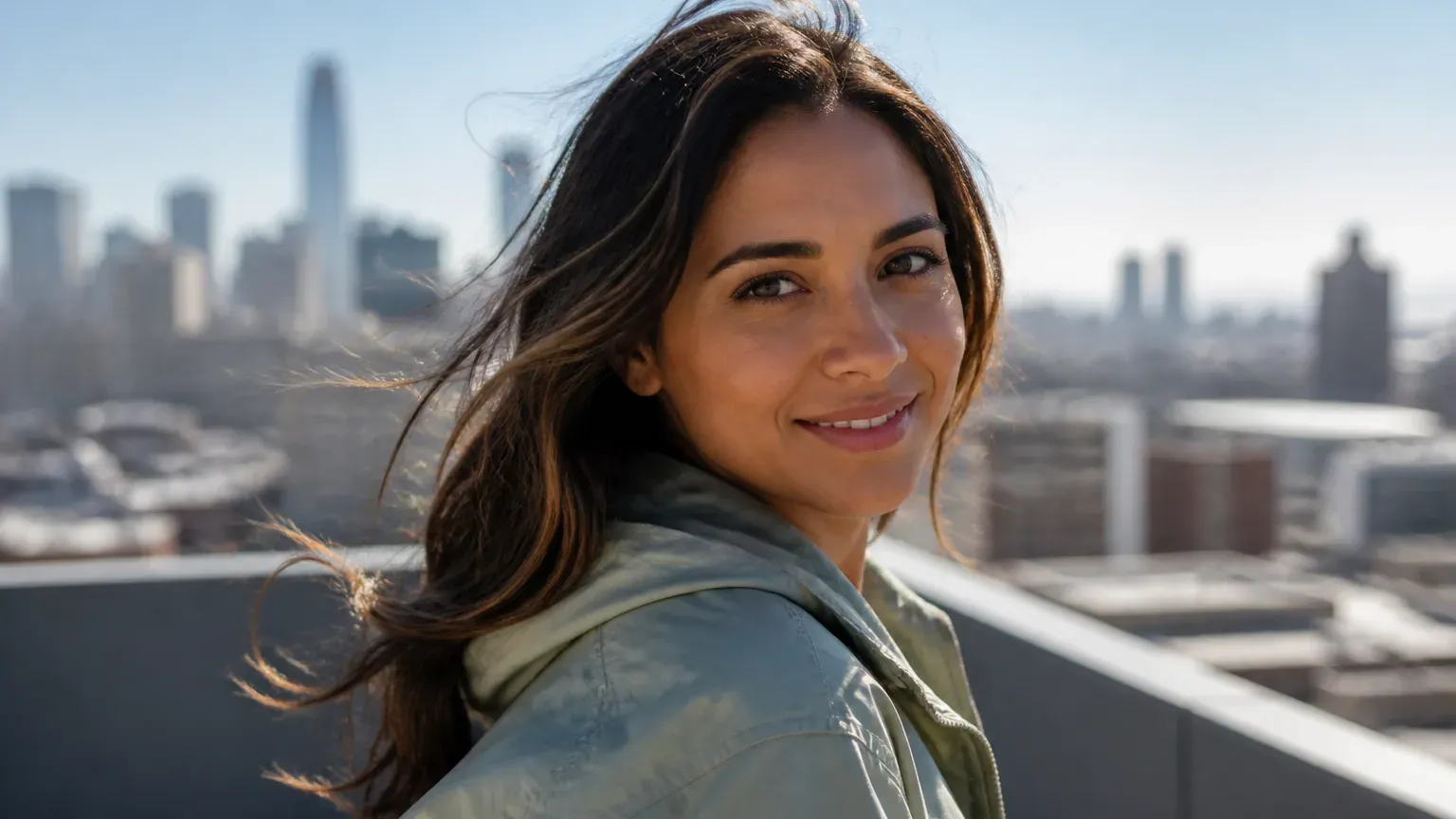
Example start frame for an image-to-video prompt below.
Pasteable prompt pack — text-to-video (Studio)
Use these in Studio when you don't have a starting image. Swap the bracketed pieces and go.
Cinematic product hero
A matte-black wireless headphone rotates slowly on a reflective concrete plinth in a dim studio, slow 180° orbital camera push-in, single soft key light with cool rim, shallow depth of field, cinematic 35mm look.Explainer B-roll
An architect's hand sketches a floor plan on white paper with a fine black pen, top-down locked camera, warm desk lamp light, minimalist workspace, documentary style.Social ad, 8s, time-coded
(0–4s) A young runner ties bright orange sneakers on a rain-wet city curb, low-angle static shot, overcast morning light, cinematic color.
(4–8s) She stands and sprints out of frame, camera tilts up to follow, motion blur, film grain.
Character moment
An elderly fisherman in a yellow raincoat laughs quietly while mending a net on a wooden pier, slow dolly-in from waist to close-up, golden-hour side light, salt haze, documentary realism.Pasteable prompt pack — image-to-video (REST + Studio)
For I2V, the reference image locks scene geometry, colors, and identity. Your prompt should describe change, not the still.
Subtle portrait animation
Preserve the subject's face, hair, and clothing from the reference. She turns her head slowly 15° to camera-right and smiles softly, hair drifts in a light breeze, camera holds static, warm window light unchanged.Product spin from a single photo
Keep the product, label, and background exactly as in the reference. Rotate the object 360° clockwise on its vertical axis at constant speed, camera locked, studio lighting unchanged.Landscape parallax
Maintain composition and color grade from the reference. Slow left-to-right dolly across the valley, clouds drift gently right, tall grass sways in a light wind, sun rays remain consistent.Character action from a storyboard frame
Preserve the character's face, armor, and background from the reference. He unsheathes his sword in one smooth motion and raises it to guard position, camera pushes in slowly from medium to medium-close, torchlight flickers on metal.Studio modes: Normal, Fun, Spicy
The Grok Imagine model page in Omnely Studio exposes three creative modes. These affect how the model interprets your prompt — they are not extra prompt keywords.
- Normal — literal, cinematic interpretation. Best for product, explainer, and realistic work. This is the default and mirrors REST API behavior.
- Fun — loosens realism, encourages exaggerated motion, playful physics, cartoon-adjacent energy. Great for social content and memes.
- Spicy — bolder, more stylized output for mature creative work. Studio-only.
Fun and Spicy modes are not available through the REST API (grok-imagine-video-1-5-preview). If you need them, generate inside the Studio UI.
Credit math you should keep in your head
Grok Imagine Video 1.5 Preview bills per second, and resolution is the biggest lever. Duration is 1–15 seconds, default 8s.
| Resolution | Rate | Default 8s clip | Approx. USD |
|---|---|---|---|
| 480p | 6 credits/sec | 48 credits | $0.48 |
| 720p | 6 credits/sec | 48 credits | $0.48 |
| 1080p | 20 credits/sec | 160 credits | $1.60 |
The legacy Grok Imagine (480p, ~6s) still shows on the pricing page at 10 credits per clip if you just want a fast preview pass. Iterate at 720p, then promote your winning prompt to 1080p for the final render — the identical prompt at 1080p costs roughly 3.3× more than 720p, so you want to be sure before you upscale.
Failure patterns and how to fix them
Most bad clips come from a small handful of prompt problems. Diagnose in this order:
Wobbly or morphing subjects
Usually caused by too many actions or a camera move competing with subject motion. Fix: remove the camera move first, then reduce to one action.
Identity drift in I2V
The face or product slowly stops matching the reference. Fix: add an explicit preservation clause — "Preserve the subject's face, clothing, and background from the reference." Keep the described motion small.
Need sound?
Omnely does not list native audio credits for Grok Imagine Video. Generate silent, then score in an editor or with Omnely audio TTS for VO only.
Multiple scene changes
Grok Imagine is a single-shot model. Cuts and location changes inside one clip produce artifacts. Fix: one continuous shot per generation. Stitch clips in an editor.
Overstuffed style stack
Piling on "cinematic, cyberpunk, anime, unreal engine, 8k, hyperreal, Pixar" collapses coherence. Fix: pick one visual register per prompt.
Prose that isn't a shot
If your prompt reads like a story instead of a shot list, results wander. Fix: rewrite as subject + action + setting + camera + lighting.
Iteration tip: change one variable per run — camera, then motion, then lighting. When you find a combo that works, save it as a template. That single habit is worth more than any list of prompt tricks.
From prompt to workflow
The teams getting consistent results treat prompts as reusable templates, not one-off writing. A practical loop:
1. Draft the shot in the skeleton above.
2. Generate at 720p to check motion and identity.
3. Change one variable, regenerate.
4. When the shot lands, upscale to 1080p.
5. Save the winning prompt with a clear name (hero_product_orbit_720p_v3.txt).
Pair this with reference images from Omnely's image models — Nano Banana Pro, Seedream, or Grok Imagine's own image mode — to build character sheets and storyboard frames that keep multi-clip sequences visually consistent.
Start writing better Grok Imagine prompts
The fastest way to internalize this is to open Studio, paste one of the packs above, and swap a single variable at a time. If you're new to the interface, start with the how-to guide, then open the Grok Imagine model page or jump straight into Omnely Video and generate your first clip.
Write the shot, hit generate, and iterate on Omnely Video with the same credit balance you already use for other models.