AI Prompts for Photos: Copy-Ready Edits With Real Before and After Results
AI prompts for photos: four copy-ready photo edit prompts (relight, background, restyle, restore), each shown on GPT Image 2 and Seedream 5.0 Pro with real before and after images and credits.

This post gives four ai prompts for photos, a relight, a background swap, a restyle and a restoration, each run once on GPT Image 2 and once on Seedream 5.0 Pro, with the real before and after images, the credit cost per run, and a short note on what each pair actually did. Every starting photo shown here is a generated image made on Omnely, not a real photograph, so these are single examples on synthetic inputs rather than a benchmark.
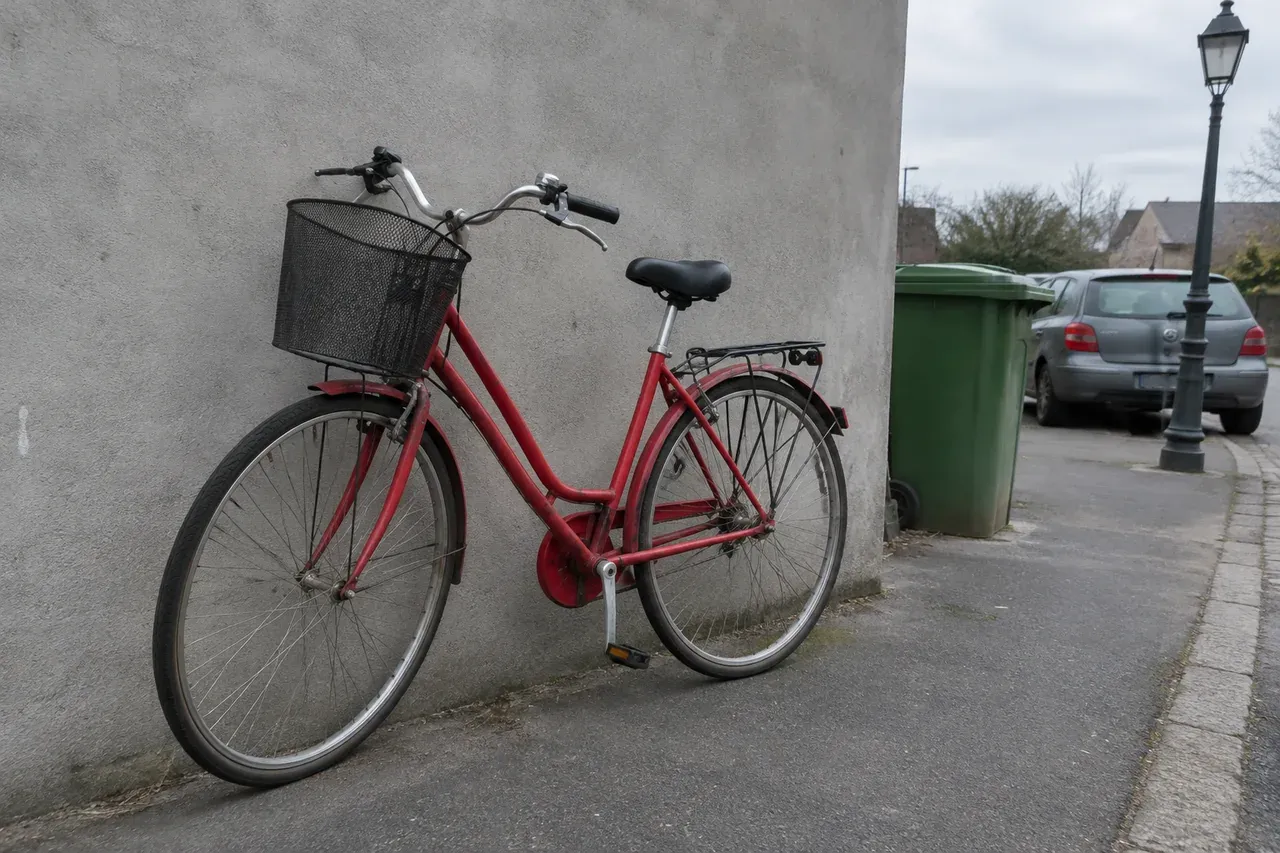
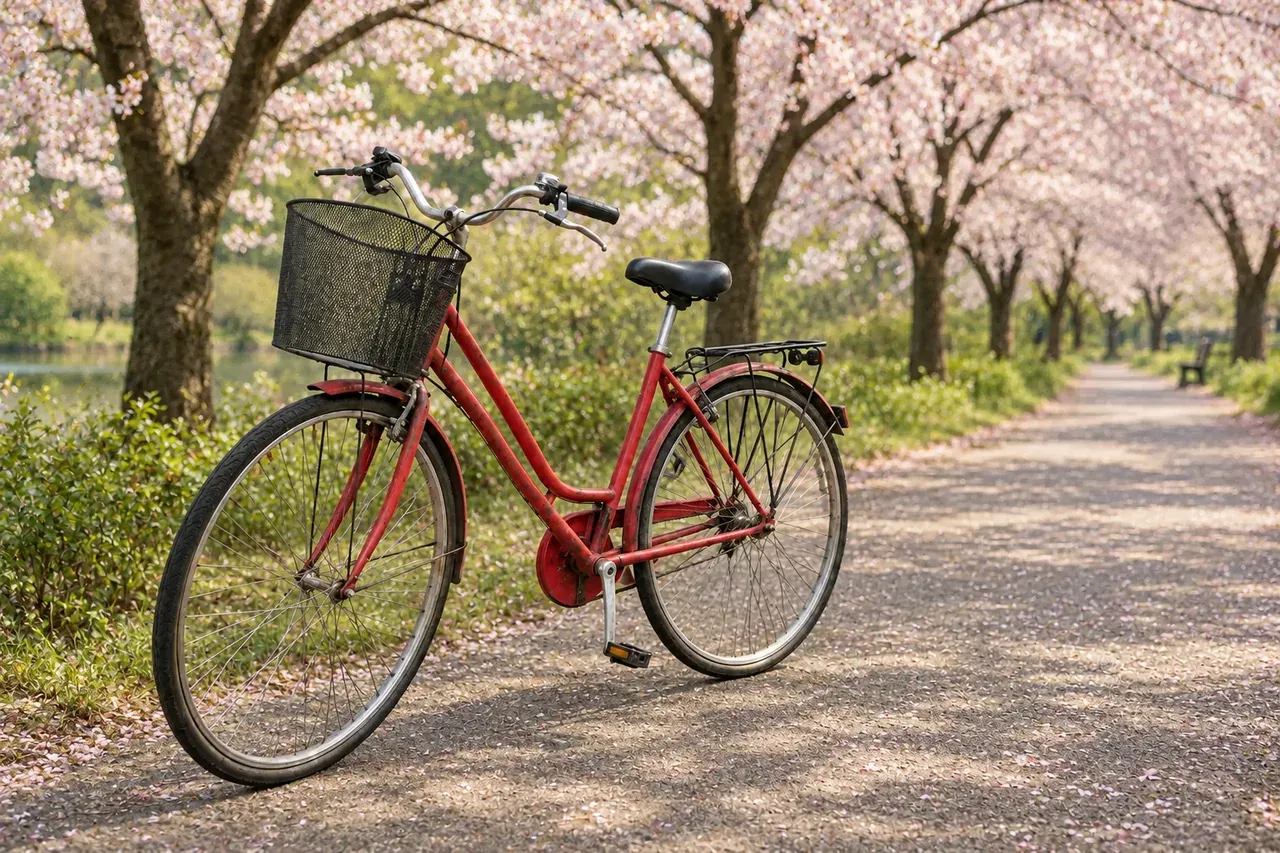
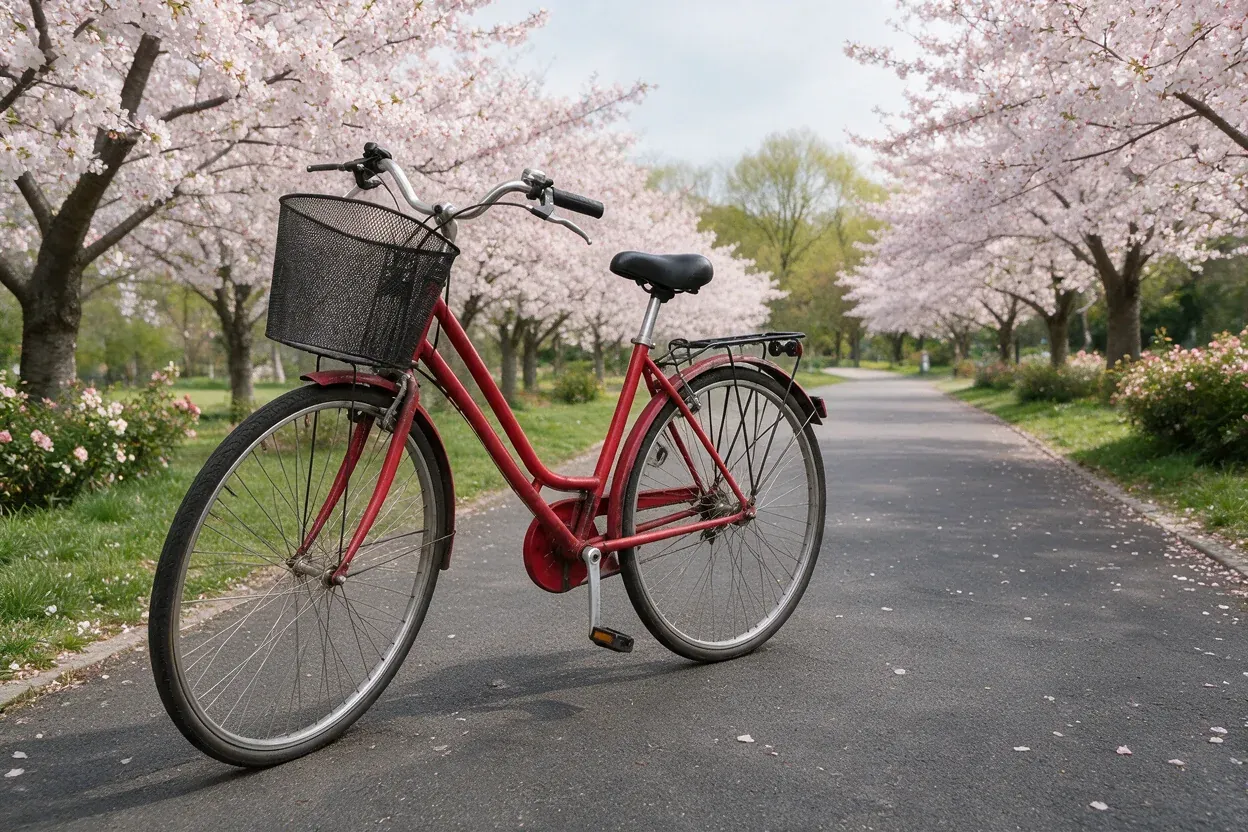
Replace only the background behind the red bicycle with a quiet park path lined with blossoming cherry trees in soft spring light. Keep the bicycle exactly as it is: red frame, basket, wheels, saddle, handlebars and its position in the frame. Match the soft daylight on the bicycle and add a natural contact shadow on the path. Remove the grey wall, parked car, green bin and lamp post. No people, no text, 3:2
Before: a generated starting photo, not a real photo.
After, GPT Image 2: 1K, 10 credits (real Omnely output).
After, Seedream 5.0 Pro: 1K, 10 credits (real Omnely output).
Try it on GPT Image 2 and Seedream 5.0 Pro.
| Part | What to write | Example from this post |
|---|---|---|
| Edit verb and target | The one change | Replace the background behind the red bicycle |
| New look | What the new area should be | A park path lined with blossoming cherry trees |
| What must stay | Named invariants | Red frame, basket, wheels, saddle, handlebars, position |
| Light or physical constraint | A rule the model must obey | Soft spring daylight, natural contact shadow on the path |
| Aspect ratio | Final size tag | 3:2 |
The ai prompts for photos formula
Three recent guides converge on the same shape of prompt. Picsart's AI photo editing prompts guide lists four parts: the action, what to edit, the desired look, and what to keep the same. ReelWand's guide on prompting an AI photo editor adds a workflow rule: one change per prompt, list the invariants by name, add a physical constraint such as light direction, then render and only then change one more thing. The nano-banana.live guide on preserving identity and lighting puts it as an explicit contract with three lines: allowed edit, scene lock, and lighting rule.
Combined into one reusable template:
[Edit verb and target: what single change to make]. Keep [named invariants: subject, composition, camera angle, objects to preserve] exactly as they are. [Physical or lighting rule: direction of light, shadow, time of day, no new objects]. Do not add text, do not add people, [aspect ratio]Four tips to keep this template honest:
- Make one change per prompt. Pair a relight with a background swap in a second run, not the same prompt.
- Name what must stay. List the sofa, the beams, the window, the bicycle's basket , anything the model should not touch.
- Give a light rule. "Deep blue dusk through the window, two warm table lamps on" is more specific than just "evening."
- Change one thing at a time on the next run. If the first output lit a fireplace that was not asked for, the follow-up prompt says "do not light the fireplace."
Every before image below is a generated starting photo made on Omnely with GPT Image 2 (or, for the living room, a Nano Banana Pro output from an earlier Omnely post), styled as an ordinary snapshot. None is a real person's photo and none is a real photograph. Real photos may behave differently.
Lighting edit
1. Relight a room to blue hour
Relight this living room photo as a calm blue-hour evening: no direct sun on the floorboards, deep blue dusk light through the window, two warm table lamps switched on. Keep the room, sofa, coffee table, ceiling beams, window and camera angle exactly as they are. Do not add or remove furniture, do not add text, 3:2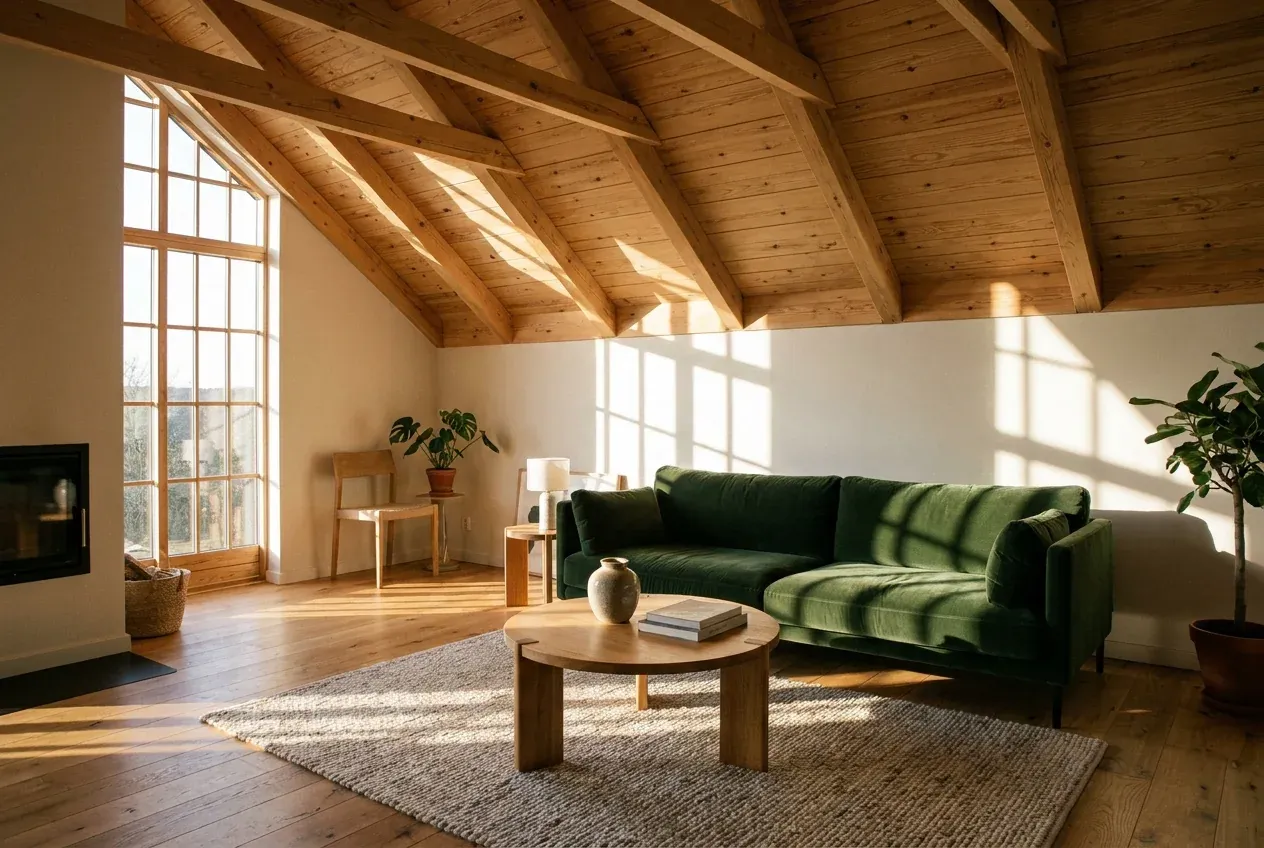
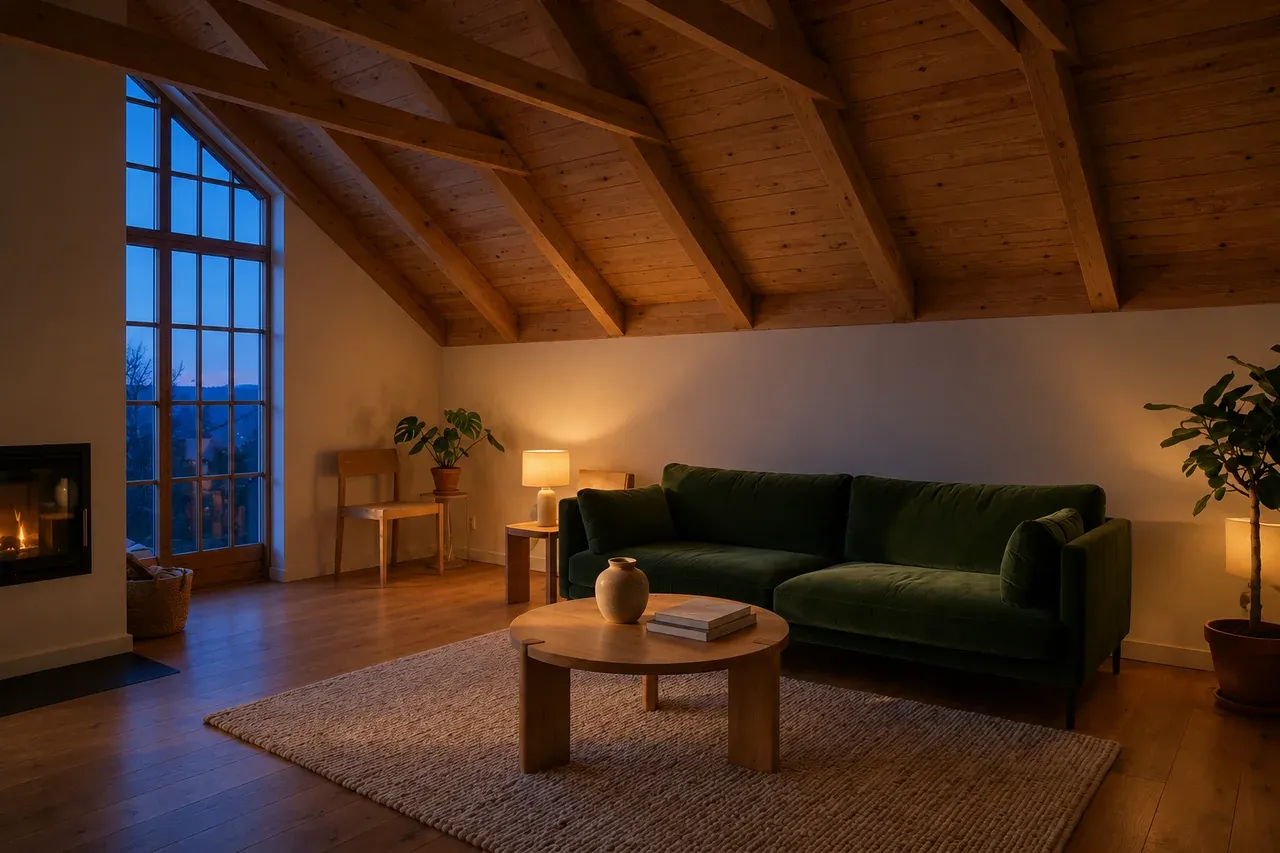
Before: a generated starting photo (a Nano Banana Pro output from another Omnely post, not a real photo).
After, GPT Image 2: 1K, 10 credits (real Omnely output).
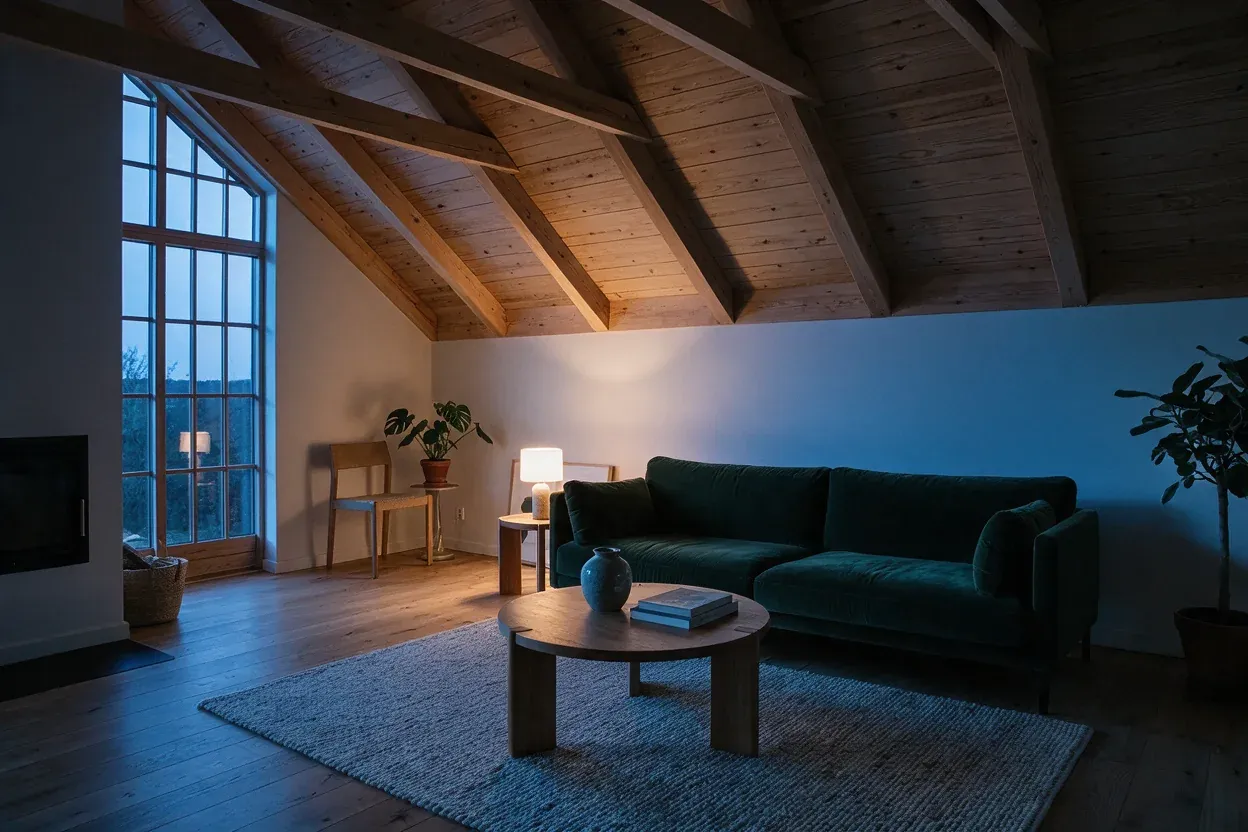
After, Seedream 5.0 Pro: 1K, 10 credits (real Omnely output).
What the three images show: the starting photo is a generated sunlit Scandinavian living room with a sloped wooden ceiling, a deep green velvet sofa, a round oak coffee table, a tall window, and sun patches on the floor and wall. Both edits kept the room, sofa, table, beams, window and camera angle in place and turned the scene into a dim dusk with blue light in the window and lit lamps. The GPT Image 2 output has a warm lamp glow on the walls, two lit lamps, and it also lit a fire in the fireplace and added a glowing lamp at the right edge, neither of which the prompt asked for. The Seedream 5.0 Pro output has a cooler, bluer overall tone, one lamp clearly lit by the sofa, a small second glow near the window, blue-grey walls and rug, and no fire in the fireplace.
Background edit
2. Replace the background behind a bicycle
Replace only the background behind the red bicycle with a quiet park path lined with blossoming cherry trees in soft spring light. Keep the bicycle exactly as it is: red frame, basket, wheels, saddle, handlebars and its position in the frame. Match the soft daylight on the bicycle and add a natural contact shadow on the path. Remove the grey wall, parked car, green bin and lamp post. No people, no text, 3:2
Before: a generated starting photo, not a real photo.
After, GPT Image 2: 1K, 10 credits (real Omnely output).
After, Seedream 5.0 Pro: 1K, 10 credits (real Omnely output).
What the three images show: the starting photo is a generated snapshot of a red city bicycle with a basket leaning on a grey concrete wall on a dull street with a parked car, a green bin and a lamp post. Both edits removed the wall, car, bin and lamp post, kept the red bicycle with its basket, wheels and position, and placed it in a park with cherry blossom trees. GPT Image 2 rendered a gravel-and-petal path in dappled light with a lake and a bench in the distance. Seedream 5.0 Pro rendered a grey asphalt path with pink flowering shrubs and grass edges, and placed the bicycle in almost exactly the same spot and size as in the original.
Restyle edit
3. Restyle a café photo as a poster painting
Restyle this photo as a flat gouache illustration in the style of a vintage travel poster: bold simplified shapes, warm limited palette, visible brush texture, no outlines. Keep the same composition: the croissant plate, the coffee cup, the napkin, the sugar jar and the window view stay in the same positions. Do not add text, do not add people, 3:2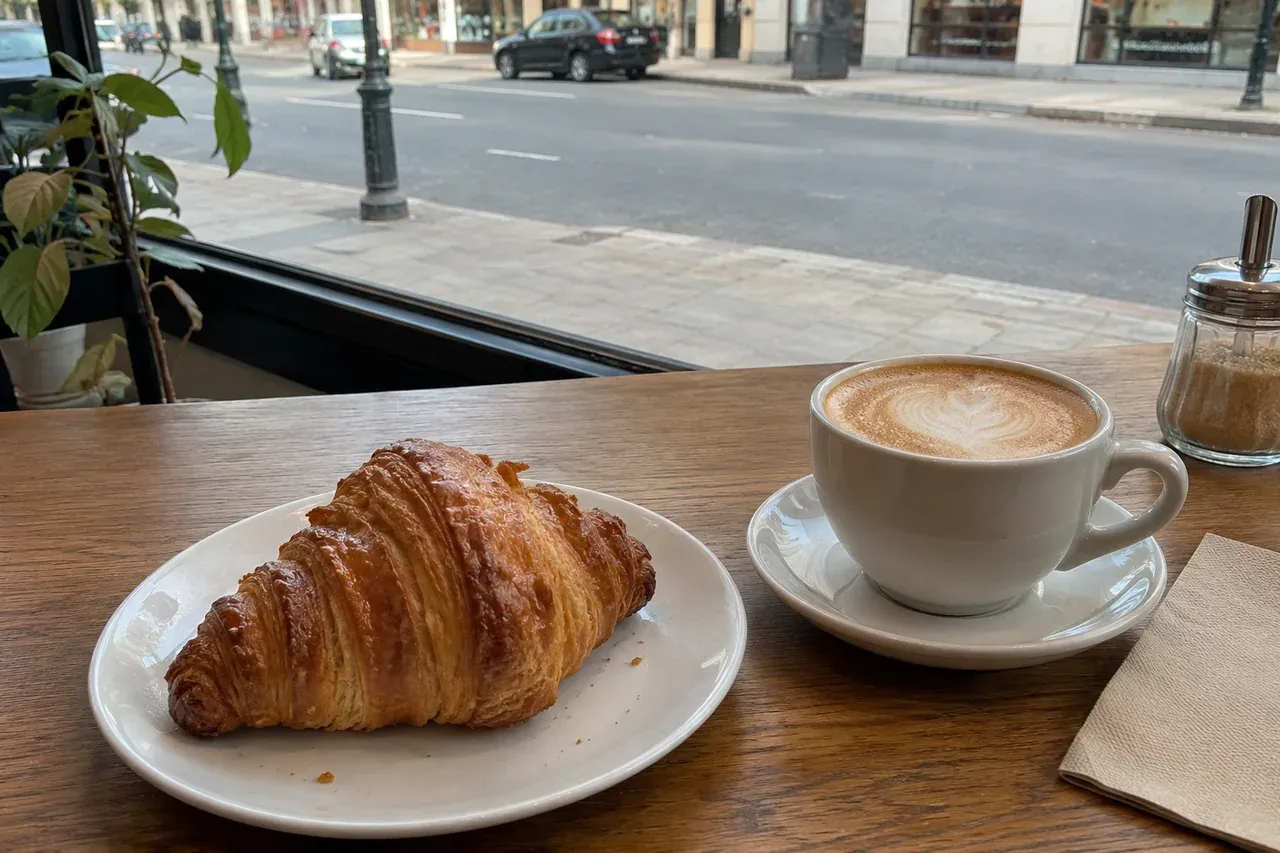
Before: a generated starting photo, not a real photo.
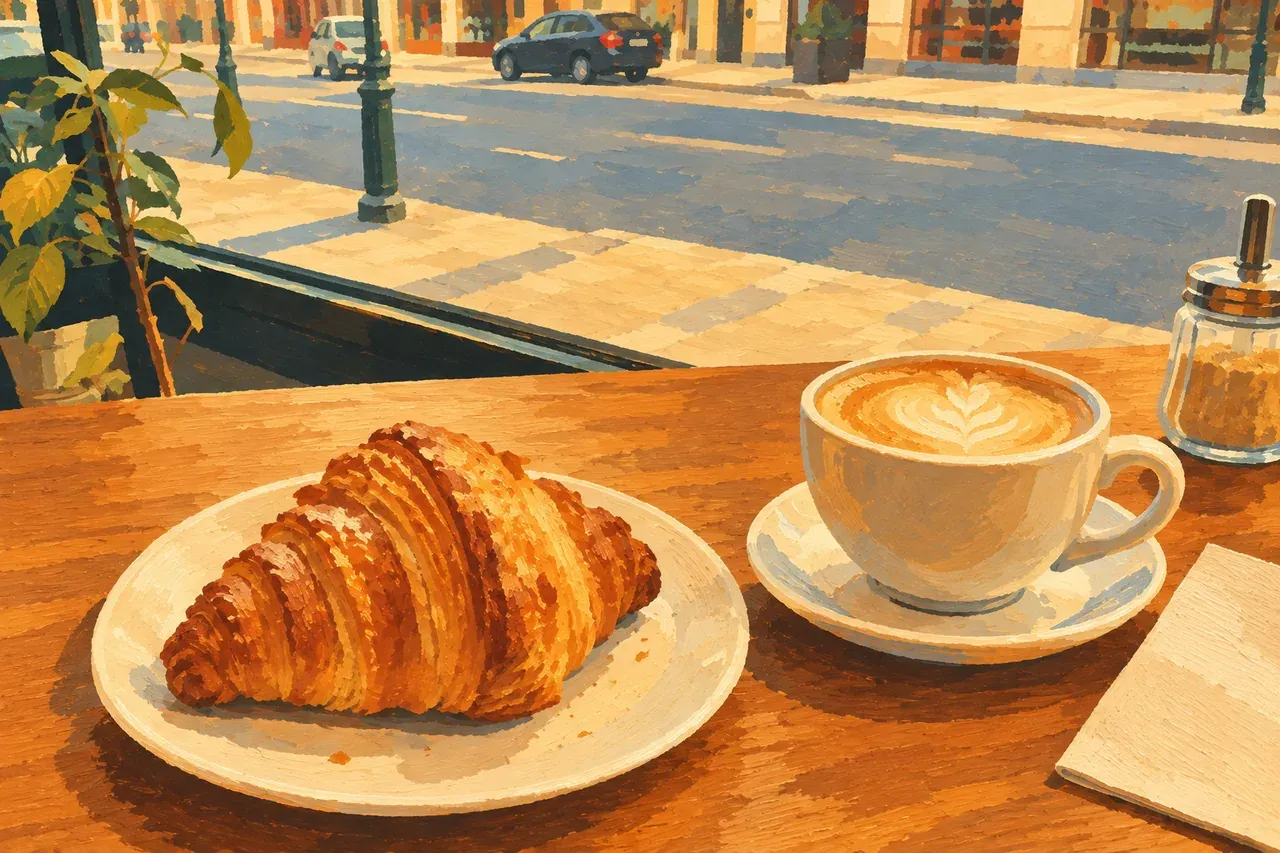
After, GPT Image 2: 1K, 10 credits (real Omnely output).
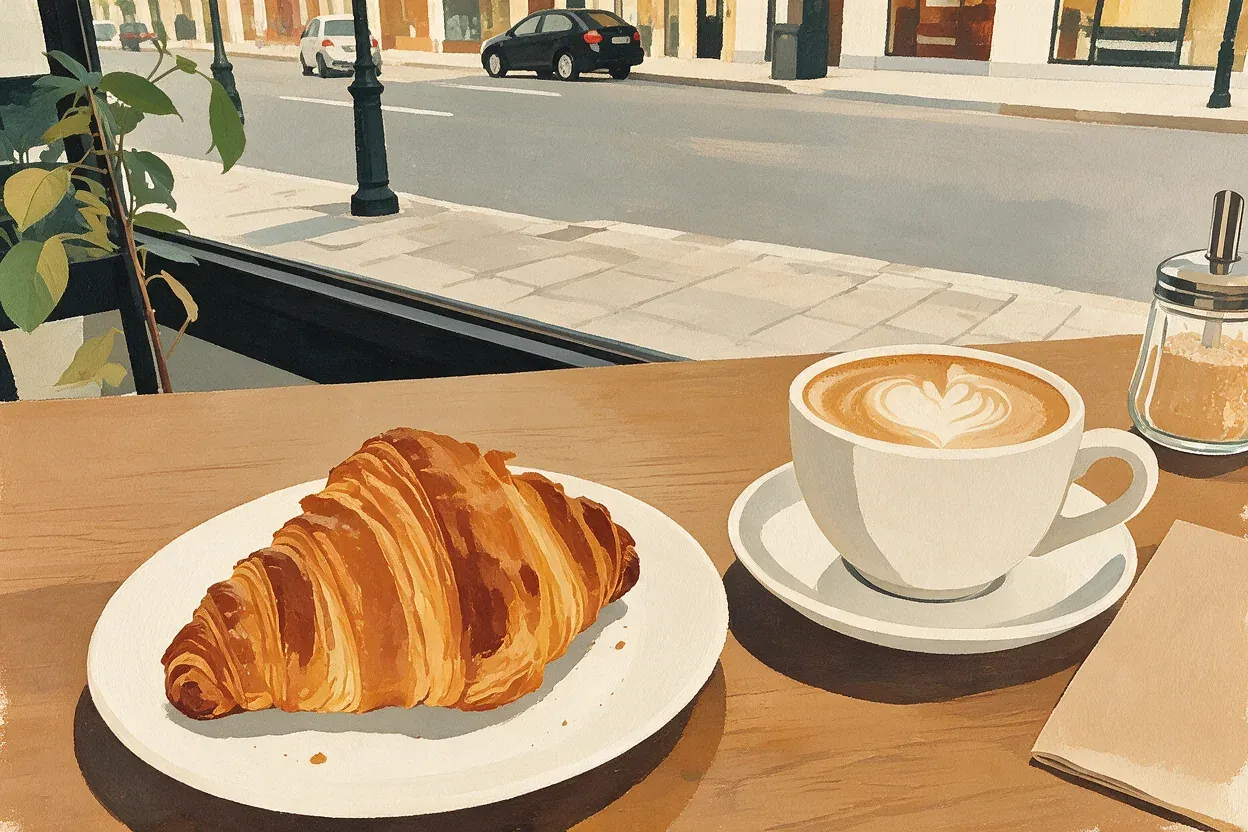
After, Seedream 5.0 Pro: 1K, 10 credits (real Omnely output).
What the three images show: the starting photo is a generated snapshot of a café window table with a croissant on a plate, a flat white, a sugar jar, a napkin and a street through the window. Both edits kept the composition , plate, cup, napkin, jar and window view in the same positions , and turned the scene into a flat poster-style painting. The GPT Image 2 output has heavy visible brush blocks and a saturated orange and yellow palette. The Seedream 5.0 Pro output has cleaner, flatter shapes and a more muted palette closer to the colors of the original.
Restore an old print
4. Restore a simulated damaged print
Restore this simulated damaged print: remove the scratches, creases, dust specks, stain and torn corners, and gently recover the faded contrast and color. Keep every beach hut, figure, railing and the horizon exactly where they are. Do not invent new objects, do not add people, do not add text or a border, 3:2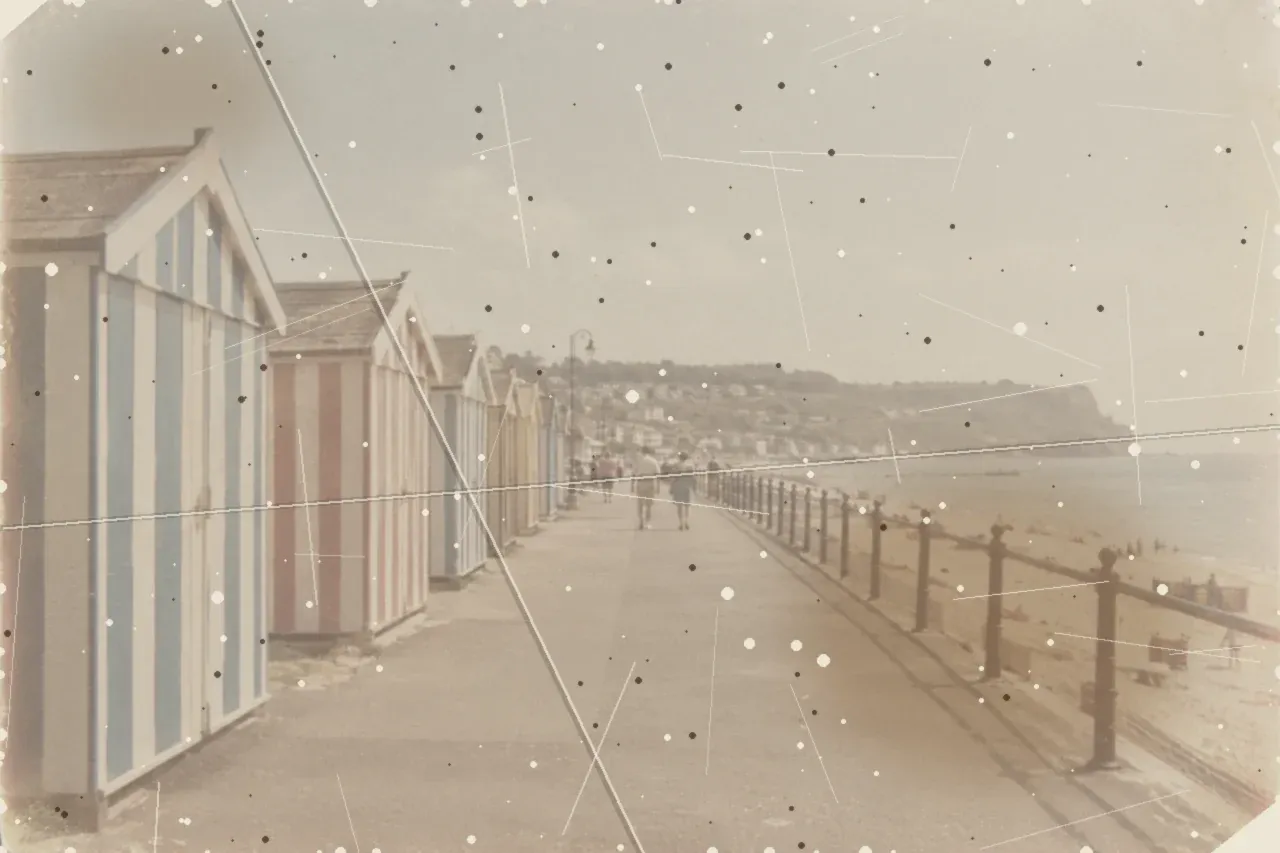
Before: a simulated damaged print: a generated image with damage added digitally, not a real damaged photo.
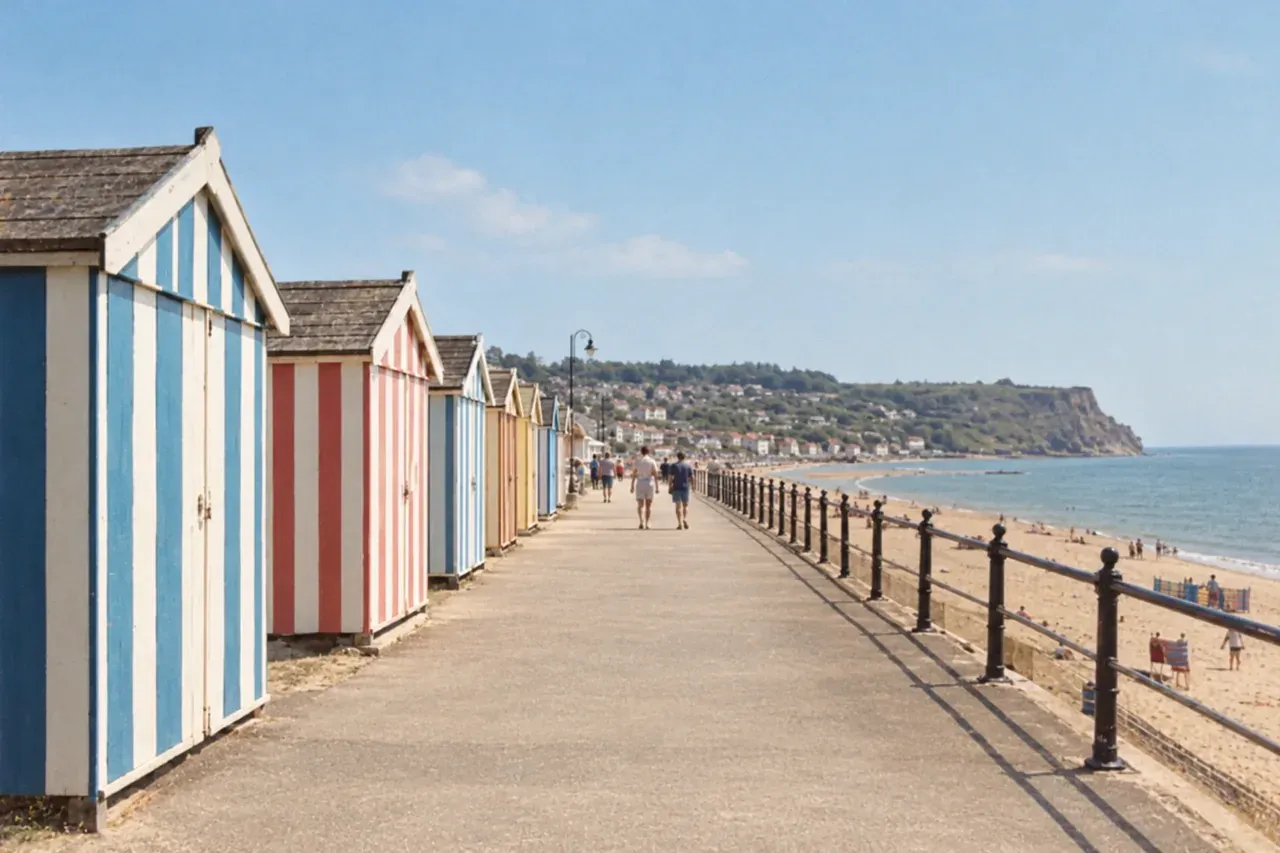
After, GPT Image 2: 1K, 10 credits (real Omnely output).
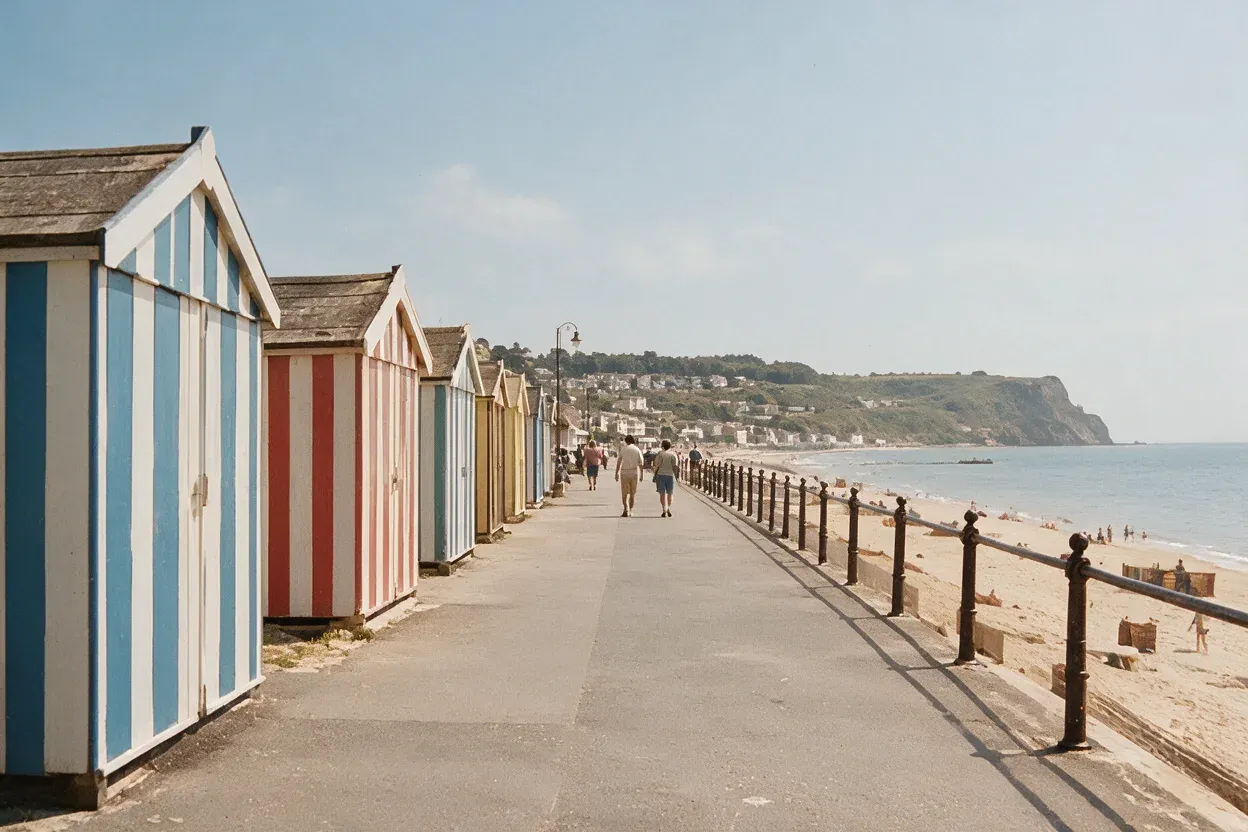
After, Seedream 5.0 Pro: 1K, 10 credits (real Omnely output).
What the three images show: the before image is a simulated damaged print , a generated seaside promenade scene with striped beach huts that was made to look like a worn 1970s print by adding fading, creases, scratches, dust specks, a faint stain and torn corners digitally. Both edits removed the creases, scratches, specks, stain and torn corners and kept the beach huts, railing, figures and horizon in the same places. Both outputs look like modern full-color photos with a clear blue sky and sea rather than a faded print, so the colors went well beyond a gentle recovery. GPT Image 2 produced a more saturated blue sky and sea; Seedream 5.0 Pro produced a slightly more muted, film-like tone.
GPT Image 2 vs Seedream 5.0 Pro for photo edits
| Capability | GPT Image 2 | Seedream 5.0 Pro |
|---|---|---|
| Credits at 1K | 10 | 10 |
| Credits at 2K | 15 | 20 |
| Credits at 4K | 20 | Not offered |
| Resolutions | 1K, 2K, 4K | 1K, 2K |
| Reference images per run | 1 to 16 | Up to 10 |
| Image to image | Yes (passing a reference image makes it an edit job) | Yes |
The overall tally across these four pairs: all 8 edits kept the layout of the starting photo; in prompt 1 GPT Image 2 lit the fireplace and added an extra lamp, while Seedream 5.0 Pro left the fireplace dark; in prompt 2 Seedream held the bicycle in exactly its original position and size; in prompt 4 both outputs moved far beyond a gentle color recovery. One run per prompt per model, on generated photos, so these are single examples and not a benchmark , results on real photos may differ.
Each edit pair in this post cost 20 credits in total (10 on GPT Image 2 at 1K plus 10 on Seedream 5.0 Pro at 1K). Nano Banana 2 is another image model on Omnely worth trying with the same prompts.
For broader coverage: the full photo-prompt library is in the ChatGPT photo prompts guide, with portrait, product, food and real-estate templates plus its own set of edit prompts. The ChatGPT image editor walkthrough explains the editing flow step by step. The how-to-use GPT Image 2 guide covers setup, resolutions and reference-image rules. And the GPT Image 2 prompts post collects more copy-ready examples.
Fixing ai prompts for photos that miss
These fixes are suggestions and were not run for this post.
- Try adding an explicit "do not" line for the extra object. For the living room, append "do not light the fireplace, do not add any extra lamps."
- Try describing the faded look to keep. For the restore, add "keep the sky and sea as pale as in the original print" so the color does not push to a modern blue.
- Try naming the exact position. For the bicycle, add "the bicycle stays in the lower-left third at the same scale" to lock placement across runs.
- Try tightening the light rule. For the relight, add "only two warm lamps emit light; the window light is dim blue, not bright."
- Try changing one thing at a time. After the restyle, run a second edit that only shifts palette ("same composition, same brush style, cooler muted palette") instead of rewriting the whole prompt.
FAQ
How many credits does a photo edit cost on Omnely?
On GPT Image 2, 10 credits at 1K, 15 at 2K, and 20 at 4K. On Seedream 5.0 Pro, 10 credits at 1K and 20 at 2K. Each edit pair in this post used 1K on both models, so 10 + 10 = 20 credits per pair.
How many reference images can GPT Image 2 and Seedream 5.0 Pro take?
GPT Image 2 accepts 1 to 16 public image URLs per run, and passing any reference turns the job into an edit. Seedream 5.0 Pro accepts up to 10 input images per run. The examples above used exactly one reference image each.
Do these prompts work on real photos?
The before images here are all generated starting photos (and in the restore case a generated image with damage added digitally), with one run per prompt per model. Real photos may need extra invariants , faces, logos, exact framing , and may need more than one pass. The template above is the same either way: single edit verb, named invariants, light rule, aspect ratio.
Which model should these prompts run on first?
Both models kept the layout of the starting photo in every pair, and both added or shifted details the prompts did not request in some cases. New users get free credits when they sign up, and the image models need a paid Omnely plan. Run the same prompt on GPT Image 2, Seedream 5.0 Pro and Nano Banana 2 side by side and keep whichever output matches the brief closest.
Pick a prompt above, drop it into the Omnely image workspace, and run the same text on two models to see which output fits the brief.