How to use GPT Image 2
How to use GPT Image 2 on Omnely — structured prompts, reference images, and a draft-at-1K finalize-at-4K workflow without ChatGPT Plus.
If you want a fast, faithful text-to-image and image-to-image model that also renders legible on-image text, GPT Image 2 is the OpenAI model to reach for — and this guide covers how to use gpt image 2 inside the Omnely Image workspace without needing ChatGPT Plus or an OpenAI API key. You'll get a repeatable brief → prompt → refine → upscale workflow, one pasteable prompt you can drop in today, and a few sanity checks so your first generations look intentional instead of accidental.
Omnely runs GPT Image 2 alongside the rest of Omnely's image stack under one login, so once you nail the workflow below you can swap between GPT Image 2, Nano Banana Pro, Seedream, and others without leaving the canvas.
How to use GPT Image 2 on Omnely in six steps
Here's the shape of the workflow — the rest of the post expands each step with prompt structure, reference-image tips, and resolution decisions.
- Open
/models/gpt-image-2(or pick GPT Image 2 from the Image hub).
- Pick an aspect ratio first, then a resolution (start at 1K to draft).
- Write a structured prompt — subject, setting, style, framing, lighting, mood.
- Paste, generate, and evaluate the 1K draft against your brief.
- Add 1–16 reference images for style or subject lock, or run an image-to-image edit.
- Once composition is right, regenerate the same prompt at 2K or 4K for the final asset.
What GPT Image 2 is on Omnely
GPT Image 2 is OpenAI's current flagship image model, exposed on Omnely as a first-class model page: omnely.com/models/gpt-image-2. A few things worth knowing before you prompt:
- Text-to-image and image-to-image in the same interface — one model, two modes.
- Resolutions: 1K (default), 2K, and 4K.
- Reference images: up to 16 attachments for style, subject, or composition lock.
- No watermark on outputs.
- No ChatGPT Plus required — Omnely handles auth and billing.
- Aspect ratios available in the workspace/API: 1:1, 4:5, 5:4, 16:9, 9:16, 3:2, 2:3, 4:3, 3:4, 2:1, 1:2, 3:1, 1:3, 21:9, 9:21, plus
auto.
A couple of aspect + resolution rules worth remembering the first time they surprise you:
autoaspect renders at 1K only.- 1:1 maxes out at 2K.
- 4:5, 5:4, 3:1, 1:3, and 9:21 are 1K only.
- Widescreen 16:9 and portrait 9:16 can go all the way to 4K, which is why hero images and thumbnails are the easiest path to a crisp 4K final.
Unlike the OpenAI API, Omnely's workspace doesn't expose a low/medium/high quality knob — you control cost and detail by choosing the resolution tier instead. That's the mental model to internalize: draft small, finalize large.
Step 1 — Open the model and set aspect + resolution
Go to /models/gpt-image-2. Before you touch the prompt box, decide two things:
- What is this image for? (Instagram square, YouTube thumbnail, blog hero, print, phone wallpaper?)
- What aspect ratio does that channel need?
A quick mapping that works for most creators:
| Use case | Aspect | Draft res | Final res |
|---|---|---|---|
| Blog hero, YouTube thumbnail | 16:9 | 1K | 4K |
| Instagram feed | 1:1 | 1K | 2K |
| Reels / Shorts / Stories | 9:16 | 1K | 4K |
| Pinterest / vertical print | 2:3 or 3:4 | 1K | 4K |
| Product square | 1:1 | 1K | 2K |
| Ultrawide banner | 21:9 | 1K | 4K |
Start every project at 1K. It's the fastest way to test composition, and it costs the least while you iterate. Only bump the resolution once the composition is locked.
Step 2 — Write a structured prompt
GPT Image 2 rewards structured prompts more than "magic words." Fill in these slots and you'll get consistent, controllable results:
- Subject — what/who is in the frame
- Action or pose — what they're doing
- Setting — where it is
- Style — photographic, illustrative, cinematic, editorial, 3D render, etc.
- Camera / framing — lens, angle, distance
- Lighting — direction, quality, time of day
- Mood / color palette — emotional tone and dominant hues
- On-image text — wrap literal text in quotes, specify size/weight/placement
If you want to change one thing between generations, change one thing. Don't rewrite the whole prompt — you'll lose the parts that were working.
Step 3 — Pasteable prompt you can use today
Drop this into the GPT Image 2 workspace at 16:9, 1K to draft:
A confident 30-year-old barista in a charcoal apron leaning on a
reclaimed-wood counter, mid-conversation with an off-frame customer.
Setting: a warm, sunlit specialty coffee shop with hanging Edison
bulbs, a brass espresso machine, and out-of-focus plants behind.
Style: editorial photography, natural documentary feel.
Camera: 50mm lens, eye-level, medium shot, subject slightly
right-of-center following rule of thirds.
Lighting: soft golden-hour window light from camera-left, gentle
falloff, warm skin tones.
Mood: welcoming, calm, premium.
Color palette: warm neutrals, amber, deep espresso brown, cream.
On the chalkboard behind, render the text "TODAY'S POUR — ETHIOPIA"
in clean hand-lettered white chalk, upper third of the board.
Sharp focus on the subject's eyes, shallow depth of field.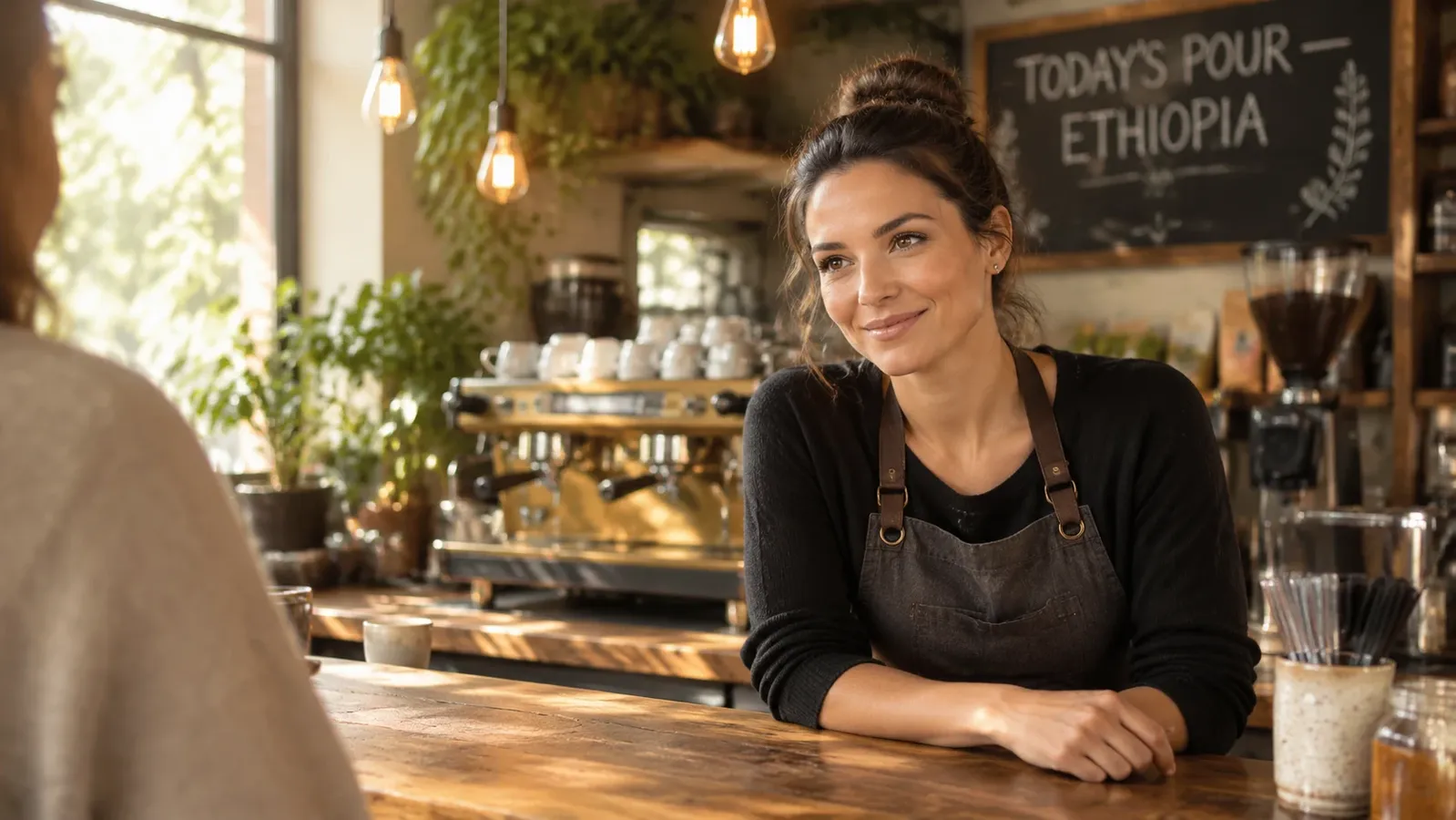
Example still from the pasteable prompt above (GPT Image 2 on Omnely, 16:9 draft).
Generate two or three variations, pick the strongest composition, and take note of what's working. If the chalkboard text is legible and the lighting is right, you're ready to upscale.
Step 4 — Add reference images (1–16)
Reference images are how you lock style, subject, or composition across a series — brand campaigns, product catalogs, character consistency for a story. GPT Image 2 on Omnely accepts up to 16 references per generation.
A few practical patterns:
- Style lock: 2–4 mood-board references + a fresh subject description.
- Subject lock: 1–3 clean shots of the same person/product from different angles + a new scene description.
- Composition lock: a single wireframe or rough sketch + a full text description of the finished look.
- Brand asset lock: logo, color swatch card, and a product photo + a text description of the ad frame.
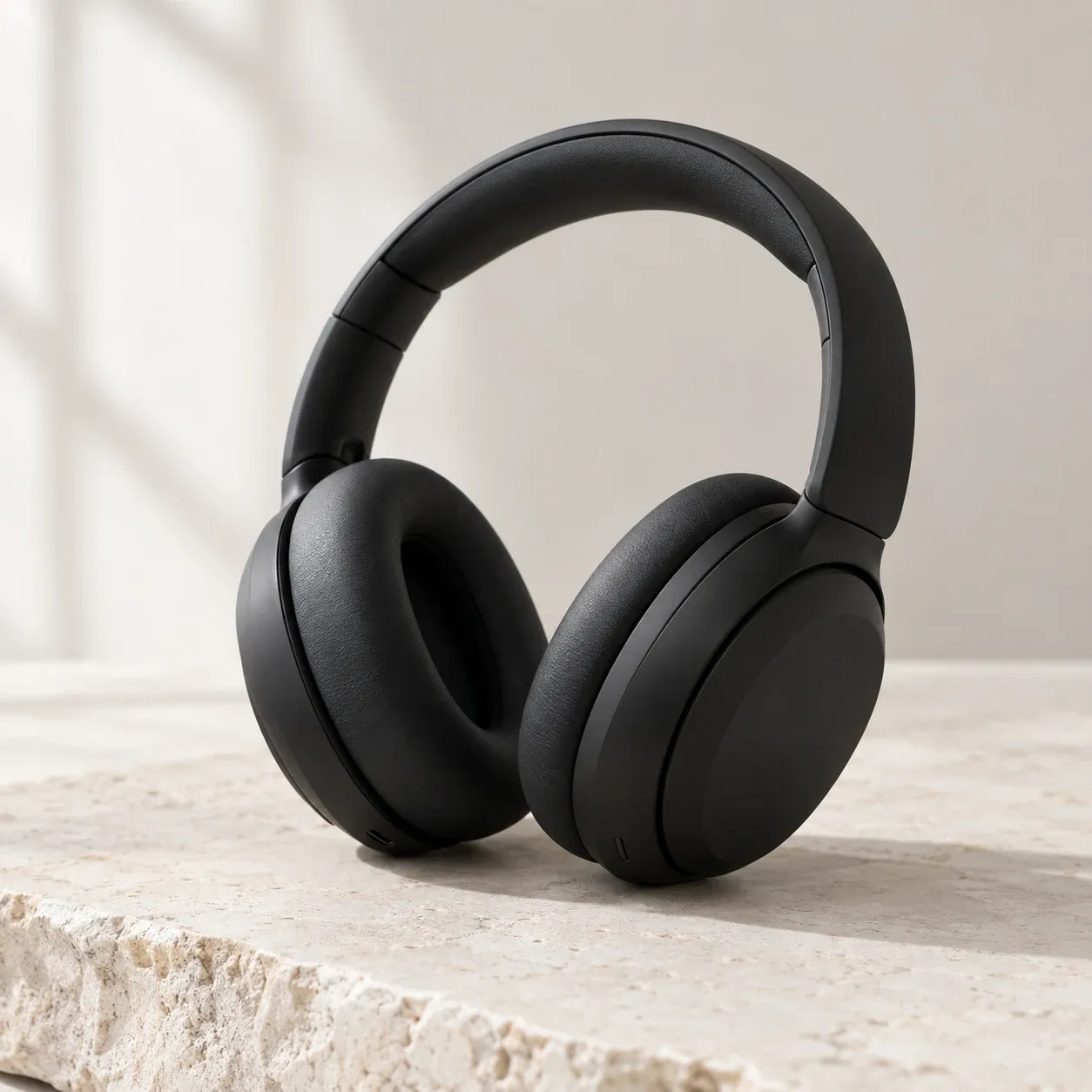
Product still example for a reference-driven catalog frame (GPT Image 2 on Omnely).
When you add references, the prompt still matters. Describe what you want the model to do with the references, not just what to copy. Phrases like "match the lighting of reference 1, the outfit color of reference 2, and keep the composition of reference 3" work better than dumping images with a bare prompt.
For image-to-image edits, upload the base image, describe only the change ("replace the sky with heavy overcast clouds, keep everything else identical"), and iterate. GPT Image 2's edge blending has improved but still deserves a look around hair, fingers, and fine text — regenerate loosely if you spot artifacts.
Step 5 — Iterate at 1K, then finalize at higher resolution
Here's where Omnely's resolution-tier model becomes useful. Instead of a quality slider, you have three checkout tiers on GPT Image 2:
| Resolution | Credits per image | Best for |
|---|---|---|
| 1K | 10 credits ($0.10) | Drafting, thumbnails, exploration |
| 2K | 15 credits ($0.15) | Social feed, blog inline, presentations |
| 4K | 20 credits ($0.20) | Heroes, print, wallpaper, ad campaigns |
The workflow that saves the most credits and produces the best final image is:
- Draft 3–5 variations at 1K while you refine the prompt.
- Lock the prompt and any reference images once composition and details look right.
- Regenerate once at 2K or 4K for the final export.
Don't start at 4K. You'll spend more credits testing composition than you would ever spend finalizing.
When to reach for Nano Banana Pro instead
GPT Image 2 is a fantastic default, especially for editorial photography, on-image text, and reference-driven consistency. But it isn't the only image model on Omnely, and honest workflows use the right tool per shot.
- Nano Banana Pro (Gemini 3 Pro Image) is worth reaching for when you want a distinct Gemini-family look, up to 14 references, or you're building layered marketing frames. See prompt patterns in nano-banana-pro-prompts. Credits at 1K/2K are 15 and 4K is 20.
- Nano Banana 2 is the cheapest Gemini-family option (8 / 12 / 15 credits at 1K / 2K / 4K) — great for high-volume drafts.
- GPT Image 2 stays the strongest general default for typography-in-image, editorial realism, and multi-reference brand consistency.
For a plain-English credit comparison across the Nano Banana line, nano-banana-pro-price breaks down the tiers.
Common pitfalls (and quick fixes)
- Blurry or generic result at 1K? The prompt is under-specified. Add lens, lighting direction, and mood.
- On-image text is garbled? Wrap the literal text in quotes, specify placement ("upper third of the chalkboard"), and re-roll. Regenerate at 2K if it stays inconsistent — text sharpens with resolution.
- Style drifts between generations? Add 2–3 style references and use "match the lighting/color/palette of the references."
- Edits change more than you asked for? Add "keep everything else identical" and describe only the region that should change.
- Composition looks flat? Add camera + framing language: "50mm, eye-level, medium shot, rule-of-thirds, subject right-of-center."
- Hands or fingers wrong? Regenerate with a small variation ("subject's hands relaxed at their sides") — hands are still an inconsistent zone across all image models.
Short FAQ
Do I need a ChatGPT Plus or OpenAI API key to use GPT Image 2 on Omnely?
No. Omnely handles auth and billing — one login covers GPT Image 2 alongside every other model in the catalog.
Can I go straight to 4K?
You can, but you'll spend more credits testing composition. Draft at 1K, then upscale by regenerating the finalized prompt at 4K.
How many reference images can I attach?
Up to 16 per generation on GPT Image 2.
Are outputs watermarked?
No — GPT Image 2 on Omnely produces clean, unwatermarked images.
Which aspect ratios support 4K?
Widescreen and portrait ratios like 16:9, 9:16, 3:2, 2:3, 4:3, 3:4, 2:1, 1:2, and 21:9 can reach 4K. auto, 4:5, 5:4, 3:1, 1:3, and 9:21 render at 1K, and 1:1 caps at 2K.
Ready to generate?
Open GPT Image 2 in the Omnely Image workspace or jump directly to the GPT Image 2 model page, start at 1K to draft, and upscale once composition is locked. If you build a prompt you love, save it — the same structured prompt will hold up across projects, and it'll port easily to Nano Banana Pro or Seedream when you want a different look from the same brief.