ChatGPT Image Editor: Reference-Guided Edits on Omnely
What the ChatGPT image editor does after Images 2.5, and how to get the same edits with GPT Image 2 on Omnely: one café photo, three chained edits, exact prompts and credits.
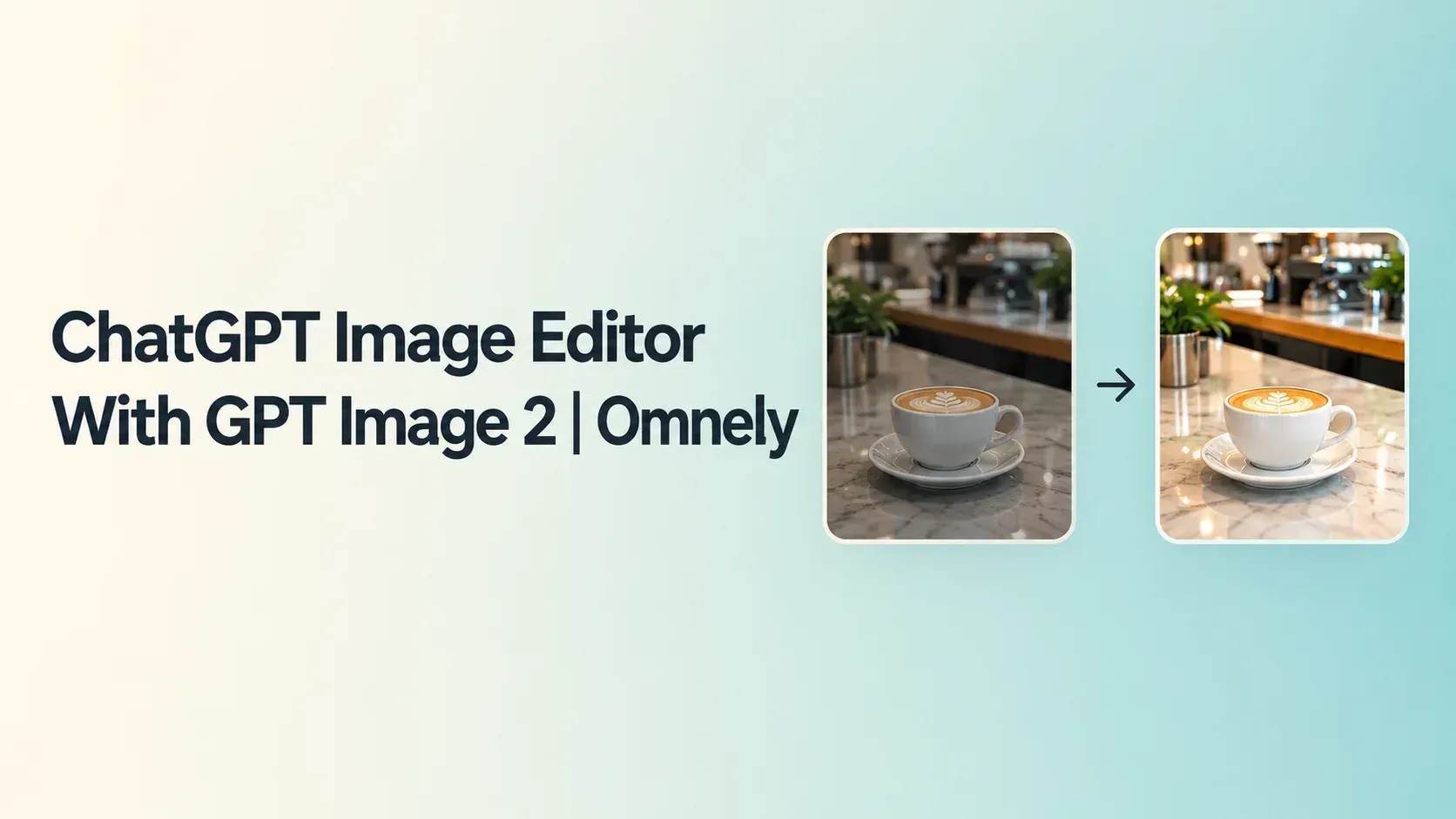
Since ChatGPT Images 2.5 launched on 8 September 2026, the ChatGPT image editor lets you select an area of a finished image, drop a comment, erase an object or resize the canvas without re-prompting from scratch. This post explains what that editor does today, then shows how to get the same kind of result as reference-guided prompts with GPT Image 2 on Omnely. You will see one café photo, three chained edits, every prompt and the credit cost of each step.
What the ChatGPT image editor can do in October 2026
OpenAI released ChatGPT Images 2.5 on 8 September 2026 and rolled it out to ChatGPT, ChatGPT Work and Codex users on desktop, mobile and web. OpenAI says the update brings sharper details, more natural lighting, better preservation of subjects in reference photos, more reliable edits across multiple turns, and up to 50% lower latency compared with Images 2.0. The same launch added Sketch, templates, comments placed directly on images and prompt sharing.
According to the OpenAI Help Center article "Images in ChatGPT", the in-chat editor exposes these tools:
- Select — highlight an area to edit
- Aspect ratio — change the frame (this regenerates the image)
- Undo / Redo / Cancel
- Describe the edit in text with no selection at all
- On mobile, additional Resize and Remove options
Third-party coverage (TechRadar, September 2026) also reports a toolbar with Markup, Comment, Remove BG, Erase and Resize, and notes that previous versions of an image stay available. OpenAI's own Help Center is explicit about the limits: "Highlights are not always precise, and edits may extend beyond the area you selected." Changing aspect ratio regenerates the image rather than cropping it, and the number of edits you can run depends on your ChatGPT plan.
One naming point matters before going further. ChatGPT Images and the GPT Image 2 API model are separate product names, and OpenAI's Images 2.5 announcement does not say ChatGPT runs on GPT Image 2. This post treats them as separate.
How reference-guided editing works on Omnely
Omnely has no separate editor UI. There is no brush, no selection mask, no comment pin and no erase brush. Edits happen inside the Image workspace: choose GPT Image 2, switch to Image to Image, upload the photo as a reference (up to 16), describe what to change and what to keep, pick an aspect ratio and resolution, then generate. Every edit produces a new image, billed in credits. To keep editing, download the newest result and use it as the reference for the next prompt.
Here is how the two approaches line up task by task.
| Task | ChatGPT image editor | GPT Image 2 on Omnely |
|---|---|---|
| Edit one area | Select brush plus prompt | Describe the area in words in the prompt |
| Remove an object | Erase brush or prompt | Prompt with a keep list |
| Change text in an image | Prompt or comment | Prompt with the exact new text |
| Change aspect ratio | Aspect ratio / Resize option, regenerates | Set aspect ratio on the next generation; 4:5 is 1K only |
| Multiple reference images | Upload images in chat | Up to 16 reference images |
| Cost | Counts against ChatGPT plan limits | 10 credits at 1K, 15 at 2K, 20 at 4K per image |
Both approaches work. The ChatGPT editor offers brush-based selection; on Omnely, the prompt does that job, and every generated image has a fixed credit cost.
The edit prompt formula: change list plus keep list
Reference-guided editing lives or dies on how precisely you describe two things: what to change and what to protect. A short template keeps every prompt consistent across a chain of edits.
Edit the uploaded photo. [Change: one specific change, naming the exact object or area]. Keep everything else exactly the same: [subject], [other objects], the lighting, colors, camera angle, crop and background.- Name the object you want to change, with its position in the frame.
- Give exact new text in quotes or after
reads exactly:for signs and labels. - Make one change per pass; stack edits by chaining references.
- Restate the keep list every time, even when it feels repetitive.
Before and after: one café photo, three edits
The example below starts from a generated source photo and runs three sequential edits. Every output becomes the reference for the next step.
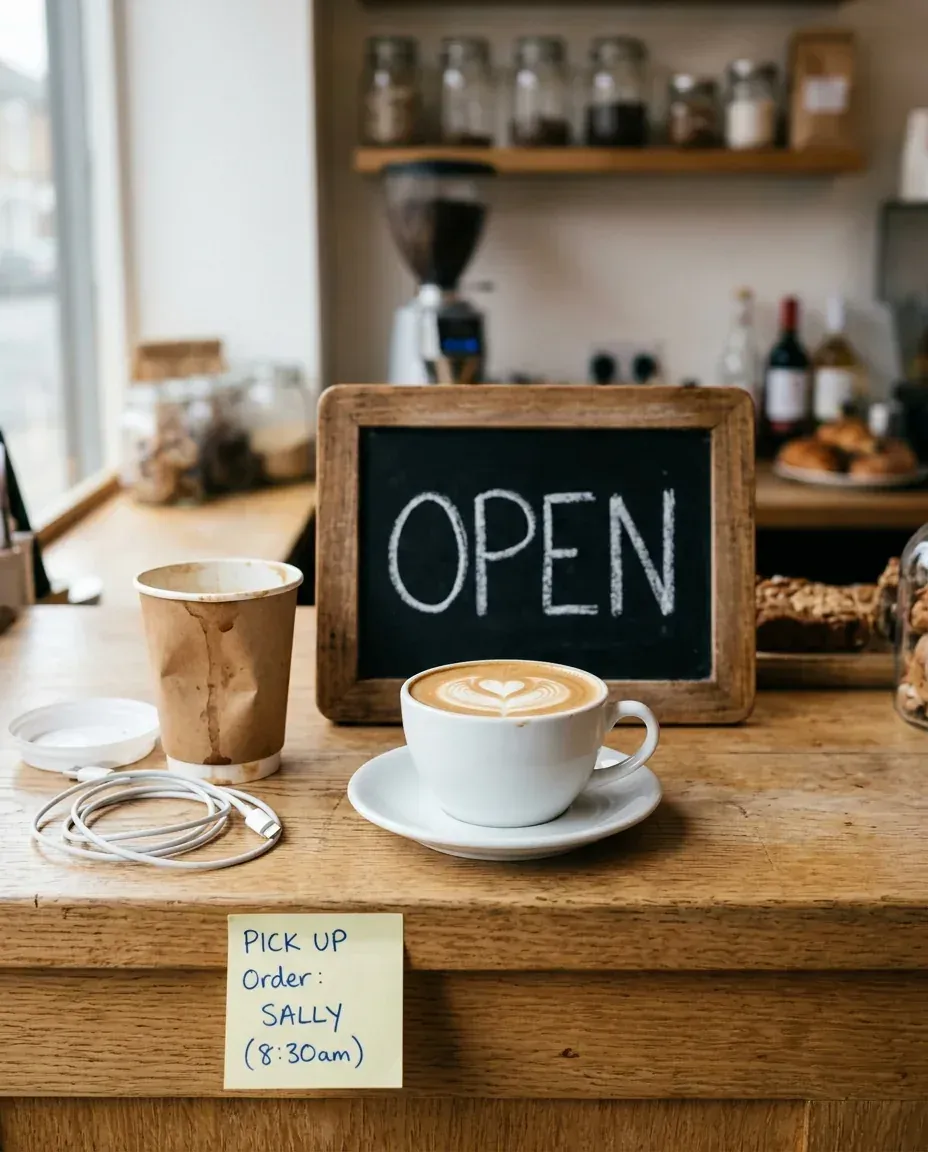
Photorealistic photo of a small neighborhood café counter in the morning. In the center, a white ceramic cup of latte with heart latte art on a light oak counter. To the left, a crumpled takeaway paper cup and a tangled white phone charging cable; a yellow sticky note is stuck to the front edge of the counter. Behind the latte, a small wooden-framed chalkboard sign with hand-lettered white chalk text that reads exactly: OPEN. Soft window daylight from the left, shallow depth of field, blurred shelves with glass jars in the background. No people, no logos, no watermark.
Before: source photo generated with Nano Banana 2 on Omnely from the prompt above (Text to Image, 4:5, 1K, 8 credits).
The source was generated with Nano Banana 2 in Text to Image at 4:5 and 1K for 8 credits. The prompt deliberately plants clutter — a paper cup and lid, a charging cable, a sticky note — plus an "OPEN" chalkboard, so the edits below have something to clean up and change.
Edit 1: remove the clutter with GPT Image 2
Switch to GPT Image 2 in Image to Image, upload the source as the reference, and keep 4:5 at 1K.
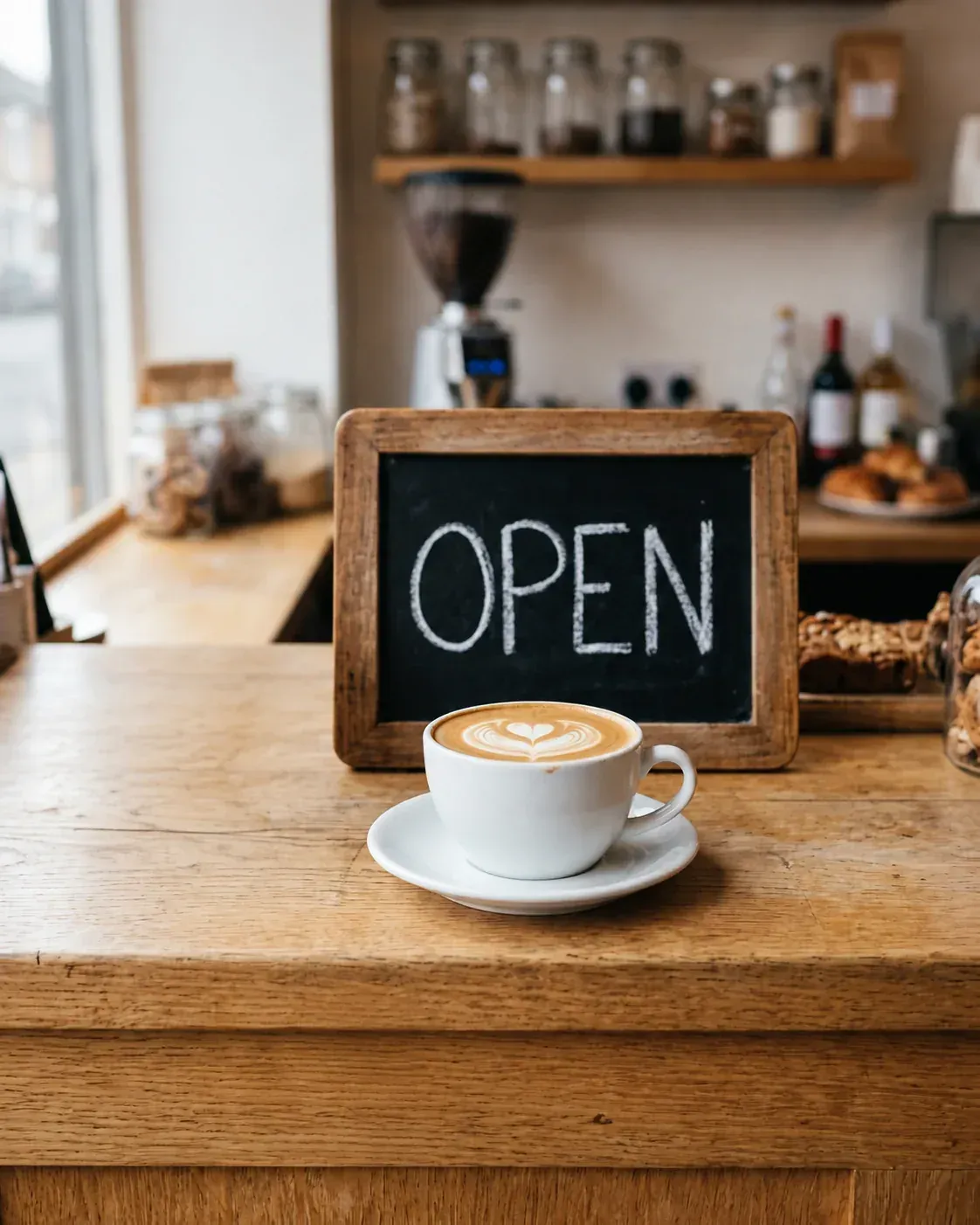
Edit the uploaded photo. Remove only the crumpled paper cup, the white charging cable and the yellow sticky note, and fill those areas with the same light oak counter so it looks untouched. Keep everything else exactly the same: the latte cup and latte art, the chalkboard sign and its text, the lighting, colors, camera angle, crop and background.
Edit 1: GPT Image 2 Image to Image on Omnely with the source photo as the reference (4:5, 1K, 10 credits).
Observed result: the paper cup, its lid, the cable and the sticky note are gone and the counter is filled in cleanly. The latte art, the chalkboard sign, the shelves, the light and the crop are all unchanged.
Edit 2: change the sign text with GPT Image 2
Download the edit 1 result and upload it as the new reference. The GPT Image 2 model page lists strong text rendering, so the new wording goes after reads exactly:.
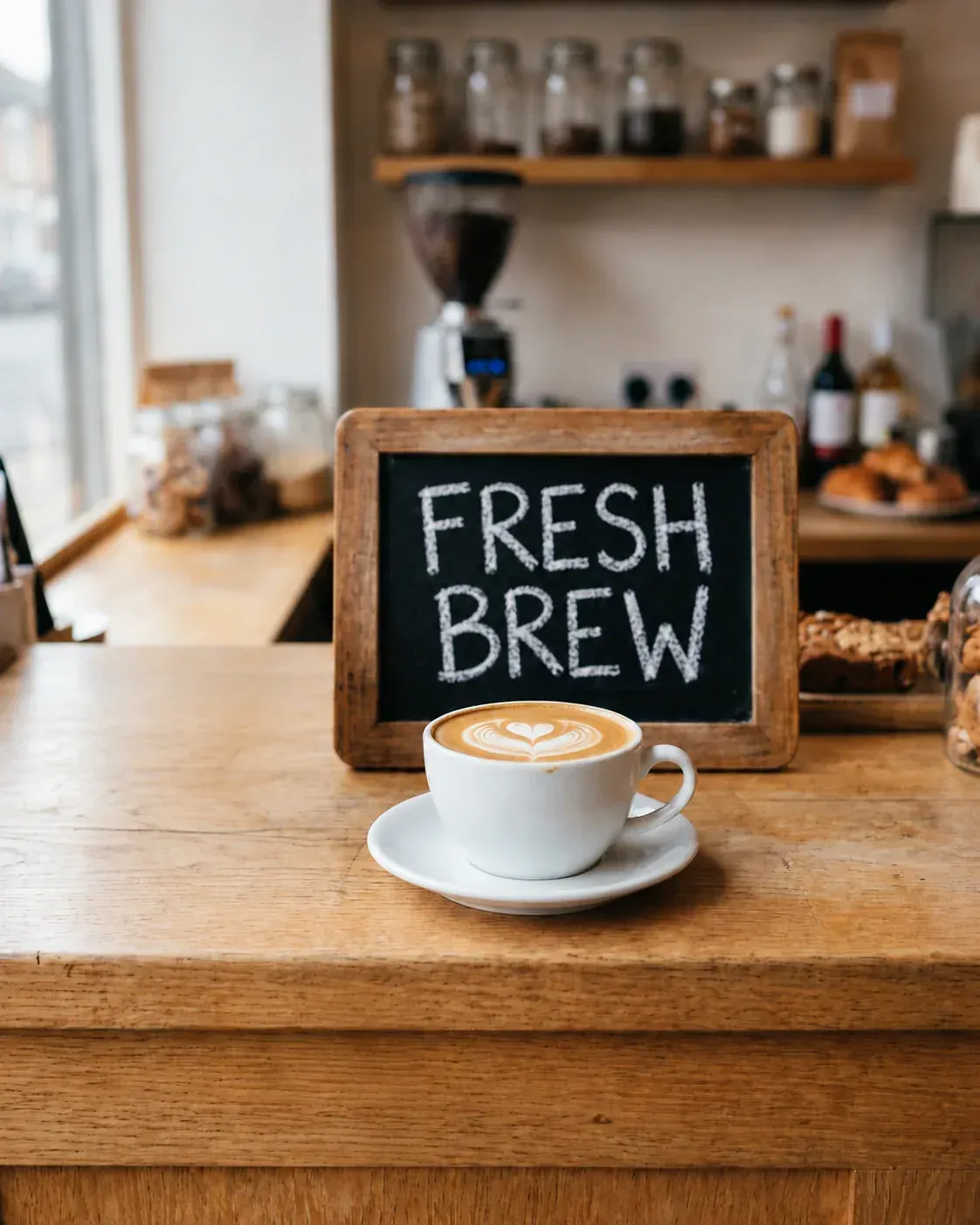
Edit the uploaded photo. Change only the chalk text on the small chalkboard sign so it reads exactly: FRESH BREW, in the same hand-lettered white chalk style and size. Keep everything else exactly the same: the latte, the counter, the lighting, colors, camera angle, crop and background.
Edit 2: GPT Image 2 Image to Image on Omnely with the Edit 1 result as the reference (4:5, 1K, 10 credits).
Observed result: the sign reads FRESH BREW in matching chalk lettering, set on two lines. The clutter removed in edit 1 stays removed and everything else is unchanged.
Edit 3: swap the background with Nano Banana 2
For a bigger scene change, Nano Banana 2 Image to Image is well suited. Upload the edit 2 result as the reference at 4:5 and 1K, 8 credits.
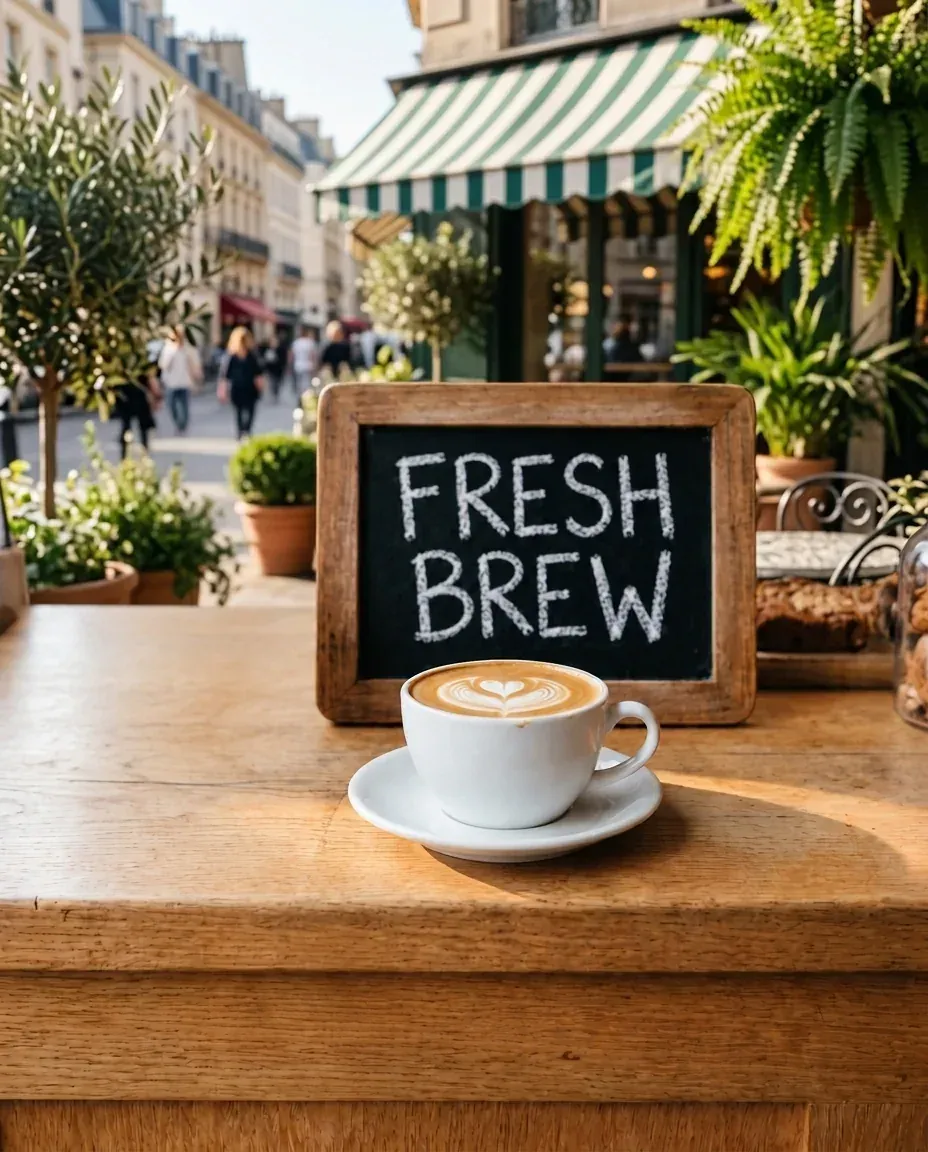
Edit the uploaded photo. Replace only the background behind the counter with a sunny outdoor café terrace: green potted plants, a striped awning and a softly blurred street. Keep the latte cup, the latte art, the chalkboard sign and its text, and the oak counter exactly as they are, with warm afternoon sunlight falling on them. Same camera angle and crop.
Edit 3: Nano Banana 2 Image to Image on Omnely with the Edit 2 result as the reference (4:5, 1K, 8 credits). Note the leftover pastry tray at the right edge.
Observed result: the café interior became a sunny terrace with a striped awning, plants and a blurred street. The cup, latte art, sign text and counter were preserved. A small slice of the original pastry tray and a jar survived at the right edge — a reminder to check edges after any background swap and run one more pass if needed.
Settings and credits for the edit chain
| Step | Model | Mode | Aspect | Resolution | Credits |
|---|---|---|---|---|---|
| Before photo | Nano Banana 2 | Text to Image | 4:5 | 1K | 8 |
| Edit 1 — remove clutter | GPT Image 2 | Image to Image | 4:5 | 1K | 10 |
| Edit 2 — change sign text | GPT Image 2 | Image to Image | 4:5 | 1K | 10 |
| Edit 3 — new background | Nano Banana 2 | Image to Image | 4:5 | 1K | 8 |
| Total | 36 ($0.36) |
- GPT Image 2 costs 10 / 15 / 20 credits at 1K / 2K / 4K. Reference images do not add to the price, even if you use several of them.
- 4:5 on GPT Image 2 is 1K only. For a larger portrait output, use 3:4 at 2K or 4K.
- Nano Banana 2 costs 8 / 12 / 15 credits at 1K / 2K / 4K and accepts up to 8 reference images.
Tips for cleaner edits
- Start from a sharp, well-lit source photo; vague inputs produce vague edits.
- Make one change per prompt and chain the next edit on the previous output.
- Name the object and its position in the frame ("the yellow sticky note on the front edge of the counter").
- Put any new text after
reads exactly:and wrap it in a clear phrase so the model does not paraphrase. - Keep the source aspect ratio across the chain so the composition does not shift.
- Check the edges and any typography at full size before using the image; small artefacts hide in the corners.
Other Omnely models for image edits
- Nano Banana 2 — up to 8 reference images, 8 / 12 / 15 credits at 1K / 2K / 4K, 10 aspect ratios including 4:5. Its model page lists background swaps, object removal and style changes.
- Qwen 3 — up to 3 reference images, 5 credits at 1K or 2K. Qwen 3 Pro is 6 credits at 1K and 12 at 2K. Image to image adds 1 credit per input image. No 4:5 option.
- Seedream 5.0 Pro — up to 10 input images, 10 credits at 1K and 20 at 2K; the first input image is included and each extra reference is +1 credit. No 4:5 option.
For the broader basics of this model, see how to use GPT Image 2, for a longer prompt library try ChatGPT photo prompts for GPT Image 2, and for reference-guided portrait edits see headshot examples from one selfie.
ChatGPT image editor FAQ
Is there a ChatGPT image editor on Omnely?
No. Omnely does not offer ChatGPT or a separate editor UI. Edits are reference-guided prompts in the Image workspace, with Image-to-Image models like GPT Image 2 and Nano Banana 2.
Is GPT Image 2 the same model as ChatGPT Images 2.5?
They are separate product names. OpenAI's Images 2.5 announcement does not say ChatGPT uses GPT Image 2, so you should not assume the two are identical.
How much does one edit cost on Omnely?
GPT Image 2 costs 10 credits at 1K, 15 at 2K and 20 at 4K per generated image. Nano Banana 2 costs 8, 12 and 15 at the same resolutions. One credit equals $0.01.
Can you edit just one part of an image without a brush?
Yes. Name the area precisely, describe the change, and give a keep list for everything the model should leave alone. Review the edges before using the result.
How many reference images can GPT Image 2 use?
Up to 16 reference images per generation on Omnely, and the per-reference count does not change the credit price.
About the title card
The cover image was generated on Omnely with GPT Image 2 in Text to Image at 16:9 and 1K for 10 credits, from this prompt:
Wide 16:9 editorial title card for a blog post. Clean modern design on a soft cream to muted teal gradient background. On the right third, a simple flat illustration of two small rounded photo frames side by side, each showing the same coffee cup on a café counter, the right frame cleaner and brighter, with a small arrow between them; no people, no faces. Large, sharp, fully readable dark charcoal sans-serif title text on the left, set on two lines exactly as: ChatGPT Image Editor With GPT Image 2 | Omnely. Perfect spelling, no extra words, no logos, no watermark, no UI chrome.Try this edit prompt
Copy the Edit 1 prompt above, upload your own photo, and swap in the specific objects you want removed and the surface the model should fill back in. Run it on GPT Image 2 on Omnely at the aspect ratio and resolution your source already uses. New users get free credits when they sign up on Omnely.