Kling Motion Control Explained: Copy a Move Onto Any Character, With Real Examples
Kling motion control copies a move from a reference video onto a character image. Steps, credits, tips and limits, with real clips made on Omnely.
Kling motion control is a motion-transfer feature that takes the movement from a short reference video and applies it onto a static character image, so the character performs the exact same moves while keeping their own face, outfit and style. On Omnely, it lives as two selectable models — Kling 3.0 Motion Control and Kling 2.6 Motion Control — inside the video workspace.
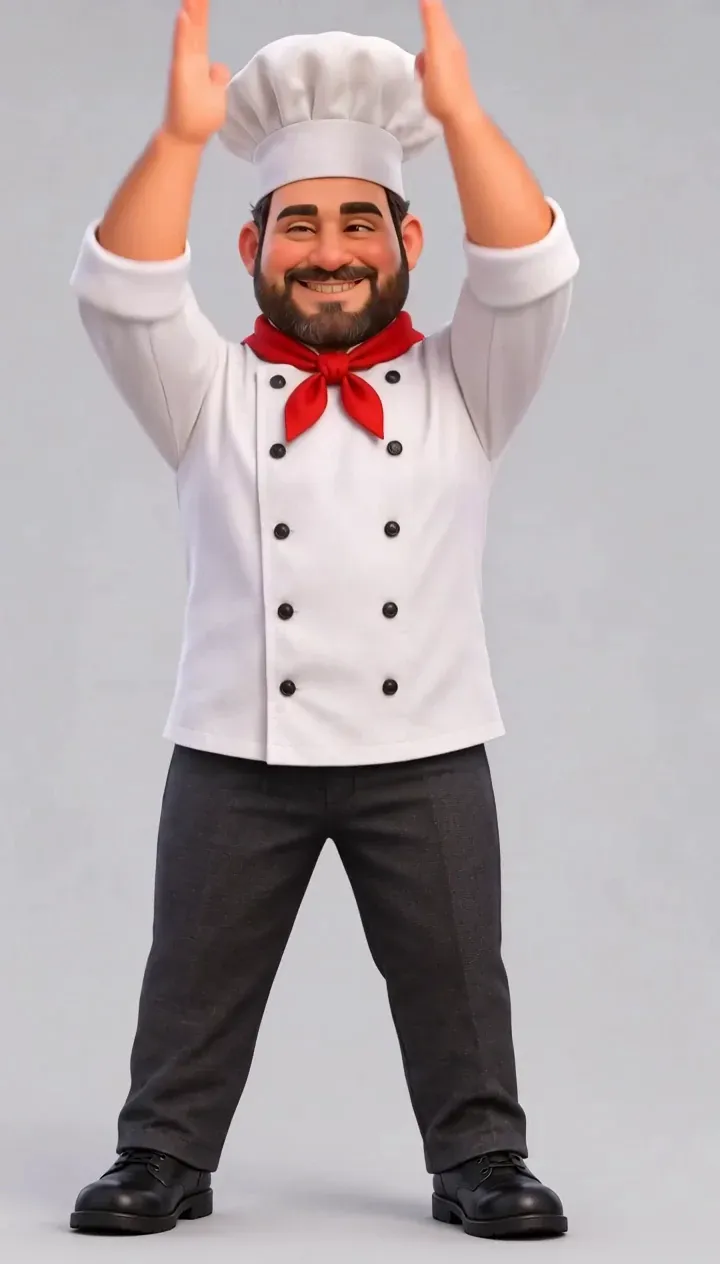
| Input image | Reference video | Model | Settings | Credits |
|---|---|---|---|---|
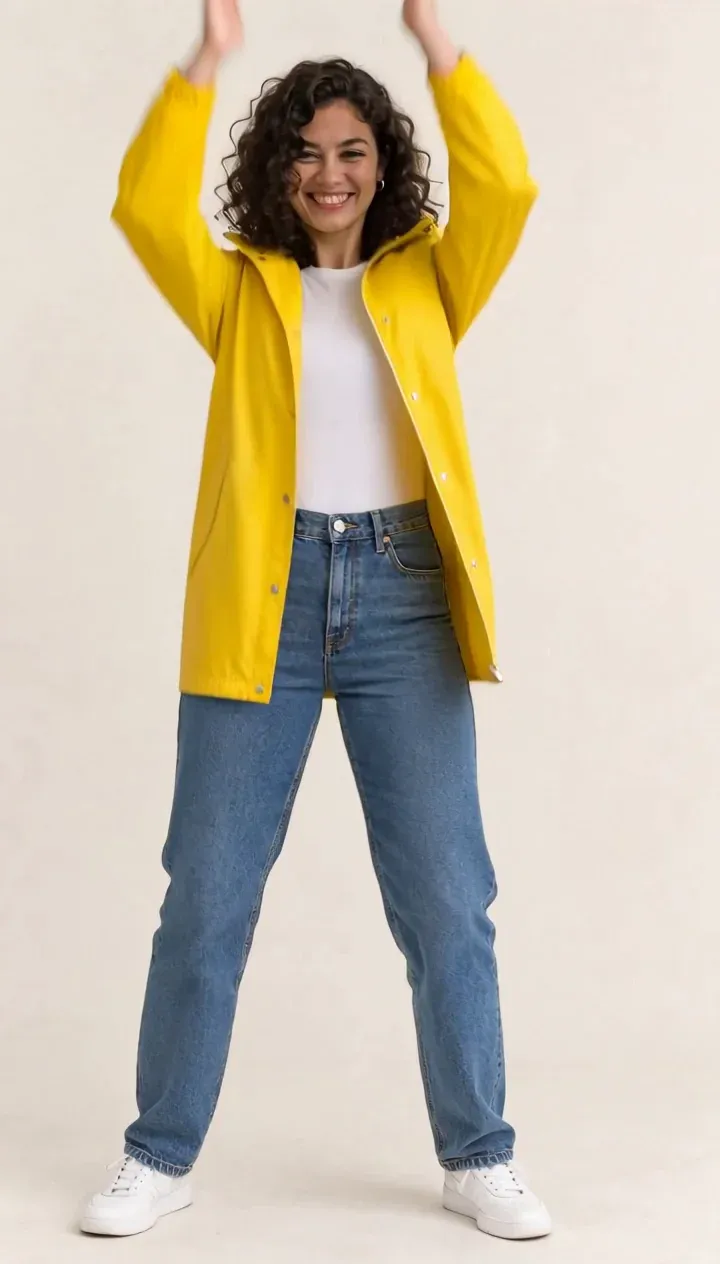
| Full-body woman in yellow raincoat (GPT Image 2) | 5 s studio dance clip (Kling 3.0 std, 60 credits) | Kling 3.0 Motion Control | 720p, 9:16, 5 s | 100 |
Kling 3.0 Motion Control on Omnely, 5 s at 720p, 100 credits: the yellow-raincoat character takes the dancer's side steps, arm swings and overhead claps while her coat, jeans and sneakers hold; her raised hands briefly clip the top of the frame, and her neutral face turns into the dancer's broad smile.
The woman in the yellow raincoat performs the dance from the reference video. Keep her curly black hair, open yellow raincoat, white t-shirt, blue jeans and white sneakers exactly as in the image. Plain warm off-white studio background, steady camera, natural daylight.Open the Motion Control tab in Omnely's video workspace to run the same setup end to end.
What Kling motion control is, and how it differs from image-to-video
Standard image-to-video takes a still image and a text prompt, then invents the motion. The model guesses how a character might move, so results vary run to run and moves rarely land on a specific beat. Motion transfer flips that: the moves come from a real video, and only the appearance comes from the image.
Kling's own docs describe Motion Control as digital puppetry — the performance clip is the motion blueprint, the image is the appearance blueprint, and the system reconstructs the motion frame by frame on the new character (Kling Motion Control user guide). In practice this means:
- Same reference video + same image + same prompt → very similar motion every time.
- The character's outfit, hair and background come from the image and the prompt.
- Timing, direction, step count and gestures come from the reference video.
- The text prompt mostly controls scene details and camera, not the moves.
That is a fundamentally different control surface from "A chef dances in a studio," which is what a plain text-to-video or image-to-video prompt would give.
How to use Kling motion control on Omnely, step by step
1. Open the Motion Control tab in Omnely's video workspace. The page has two tabs at the top: Generate and Motion Control. Pick Motion Control.
2. In the model picker, choose Kling 3.0 Motion Control or Kling 2.6 Motion Control.
3. Upload the character image (the look you want to animate).
4. Upload the reference video (the motion you want copied). Between 3 and 30 seconds. The output clip length follows the reference video — there is no separate duration slider.
5. Optionally write a prompt (up to 2,500 characters) describing outfit details, background and lighting. This is where art direction lives.
6. Choose 720p or 1080p.
7. Check the credit estimate before generating. It is calculated per second of the reference clip.
8. Generate.
Character orientation on Omnely follows the reference video. Kling's own app documents a separate "orientation matches image" mode that unlocks camera moves and a 10 s cap, but that toggle is not exposed in the Motion Control tab on Omnely (Kling Motion Control user guide).
Credits: Kling 3.0 vs Kling 2.6 motion control
Billing is per second of the reference video, so a 5 s clip costs 5× the per-second rate.
| Model | 720p / sec | 1080p / sec | 5 s @ 720p | 5 s @ 1080p | 10 s @ 720p |
|---|---|---|---|---|---|
| Kling 3.0 Motion Control | 20 | 30 | 100 | 150 | 200 |
| Kling 2.6 Motion Control | 12 | 18 | 60 | 90 | 120 |
For reference, the dance clip used in every test below was itself generated inside Omnely with regular Kling 3.0 (standard, silent, 5 s, 9:16) for 60 credits. Full Kling 3.0 image-to-video and text-to-video pricing is in the Kling 3.0 price in credits breakdown.
Picking the character image
The single biggest variable in motion control is whether the image matches the frame the reference video needs. Side-steps and overhead claps need headroom on both sides and above the head.
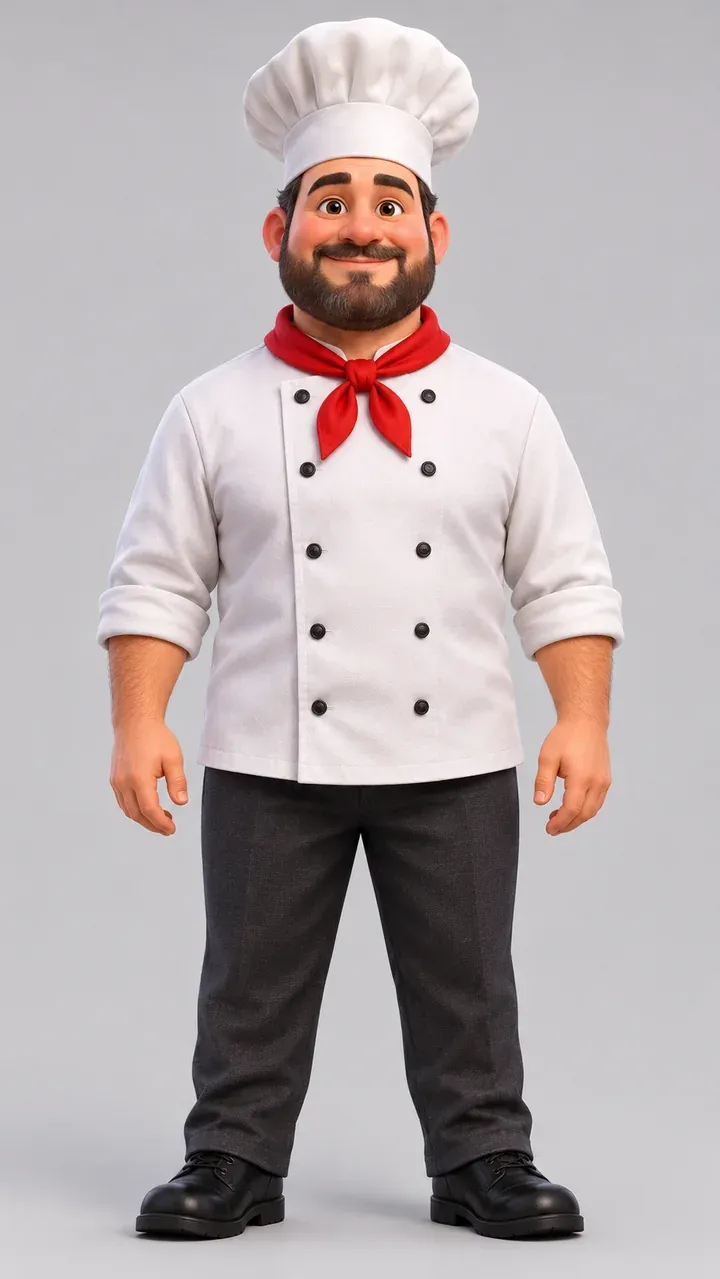
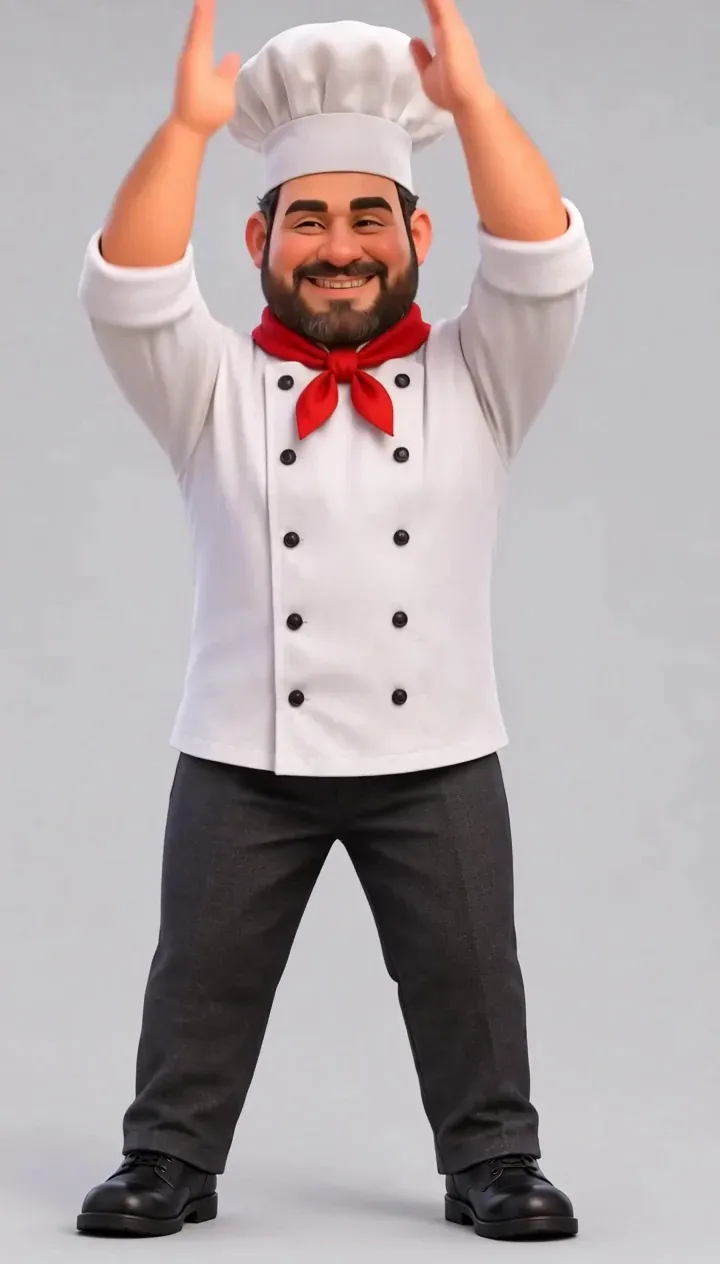
Character image A: a stylized 3D cartoon chef, full body, made with GPT Image 2 on Omnely (10 credits); note how close the hat and shoes sit to the edges.
The chef image above works — full body, facing camera, plain background — but the hat sits close to the top edge and the shoes almost touch the bottom. That tight headroom shows up later as hands clipping the top of the frame during the overhead claps.
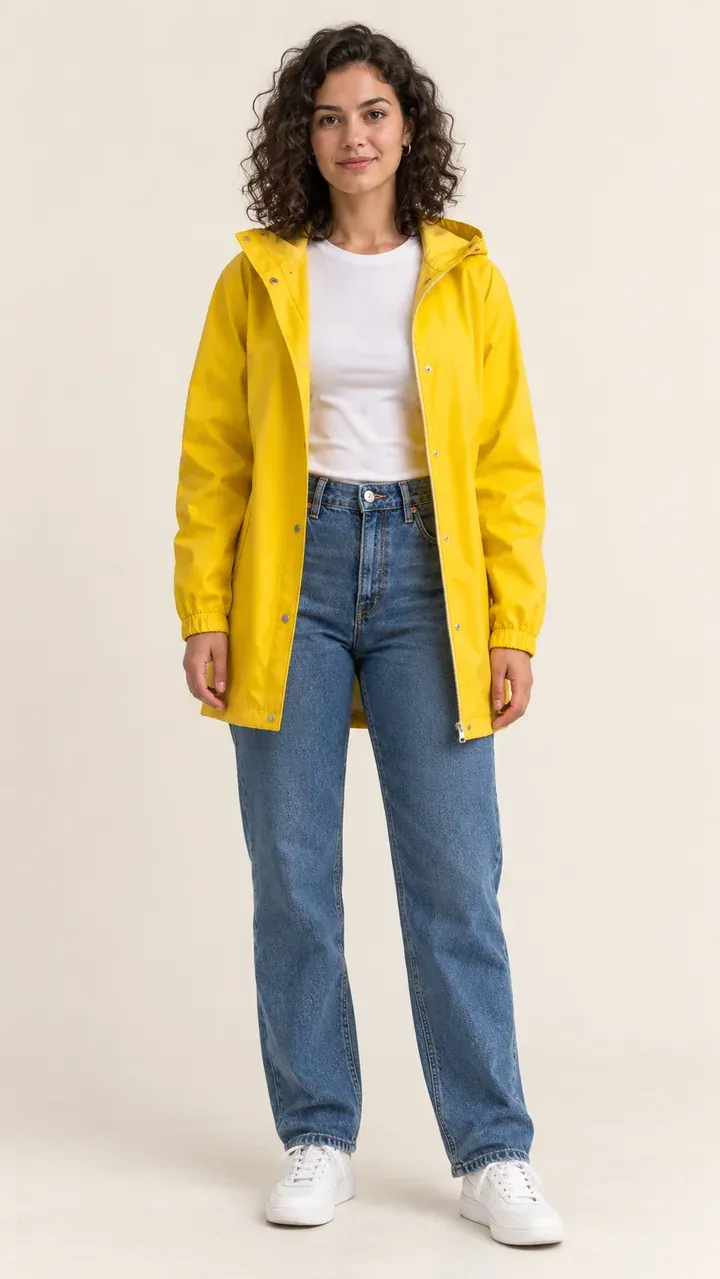
Character image B: a fictional woman in a yellow raincoat, full body with room around her, made with GPT Image 2 on Omnely (10 credits).
The raincoat image is a better match: full body, centered, plain off-white background, and a clear margin all around the figure. There is room for the character to step left and right and raise her arms without hitting the frame.
Checklist for the character image:
- Full body visible, head to feet (for a full-body reference clip).
- Facing roughly the same direction as the person in the reference video.
- Plain background if you want a clean transfer.
- Proportions that roughly match the dancer (similar body size in frame).
- No extreme poses — Kling's docs warn that upside-down, lying-flat or heavily occluded images reduce quality (Kling user guide).
Picking the reference video
The reference clip is the actual "script." Everything about timing, direction and specific moves comes from it.
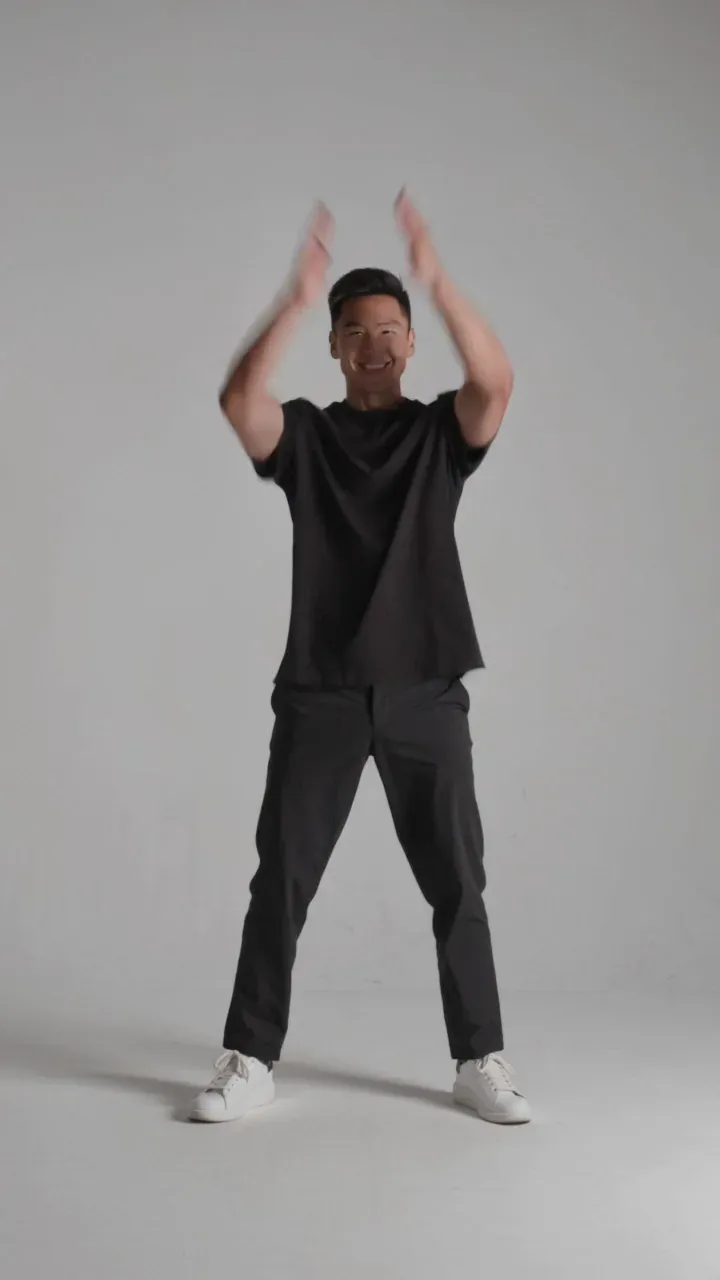
The motion reference: a 5 s Kling 3.0 std clip made on Omnely for 60 credits, one dancer, locked-off camera, no cuts.
Locked-off static camera on a tripod, no camera movement, no zoom, no cuts, one continuous shot. A single adult dancer in a plain black t-shirt, black trousers and white sneakers performs a simple, moderate-speed, cheerful dance in place: side steps left and right, arms swinging up to shoulder height, two claps above the head, a small wave to the camera. The dancer stays fully in frame the whole time, entire body visible from head to feet, centered, filling about 70% of the frame height, facing the camera, no spins, no jumps, nothing blocking the body. Plain light grey seamless studio background, even soft lighting. No other people, no text, no logos.That clip was produced on Omnely with Kling 3.0 standard, 5 s, 9:16, silent, for 60 credits. The "studio-clean" shape is deliberate. Kling's documentation lists what tends to fail: multiple people, heavy occlusion, fast spins, aggressive camera moves, hard cuts, or motion so fast the model trims the output (Kling Motion Control API reference).
A clean reference clip in practice:
- One person, visible head to feet (or clean upper body if the character image is upper body).
- Static camera, one continuous take, no cuts.
- Moderate speed. Smooth transitions between moves.
- Duration between 3 and 30 seconds.
- Nothing blocking the body, no props flying across.
What the prompt actually does in motion control
In standard image-to-video the prompt is doing most of the work. In motion control it is not. The prompt is useful for:
- Pinning outfit details that the image might render ambiguously ("open yellow raincoat, white t-shirt visible underneath").
- Setting the background ("plain warm off-white studio").
- Describing lighting and camera framing.
- Reinforcing identity cues ("curly black hair," "tall chef hat and beard").
The prompt does not change which moves happen, how fast they happen, or in what order. If the reference video has two overhead claps, the output will have two overhead claps. Writing "add a jump at the end" in the prompt will not add a jump. More Kling-style prompt structures are in the AI video prompts guide.
Real results: Kling 3.0 vs Kling 2.6 motion control
Same chef image, same reference video, same prompt, same 720p setting. The only change was the model.
Kling 3.0 Motion Control, cartoon chef, 5 s at 720p, 100 credits: moves stay in sync and the jacket, neckerchief, hat and beard stay consistent, but the raised hands touch the top edge because the source image had little headroom.
Kling 3.0 Motion Control, 720p, 5 s, 100 credits. The side steps, arm swings and overhead claps carry over in sync. The white chef jacket, red neckerchief, hat and beard stay consistent across the clip. When the hands go up for the claps, they touch the top edge of the frame — most likely a result of how tightly the input image was cropped.
Kling 2.6 Motion Control, same chef, reference and prompt, 5 s at 720p, 60 credits: in this single test it is very hard to tell apart from the Kling 3.0 clip, including the same top-edge hand clipping.
Kling 2.6 Motion Control, same character, same reference, same prompt, 60 credits. At 720p and 5 s, the two clips are very close to frame-for-frame identical in this test: same timing, same poses, same outfit retention, same hand clipping at the top of the frame. This is a single comparison on a single setup — it is not a general ranking. Kling itself positions 3.0 around improved facial consistency for complex, multi-angle scenes, which this short full-body studio test does not stress (Kling Motion Control user guide).
Practically, for a straightforward 5 s full-body clip in a controlled setting, Kling 2.6 Motion Control at 60 credits delivered a near-identical result here. For complex face work or longer sequences, Kling's documentation suggests 3.0 is the intended tier.
Limits: what breaks, and why framing matters
The mismatch test uses a waist-up character image with a full-body dance reference.
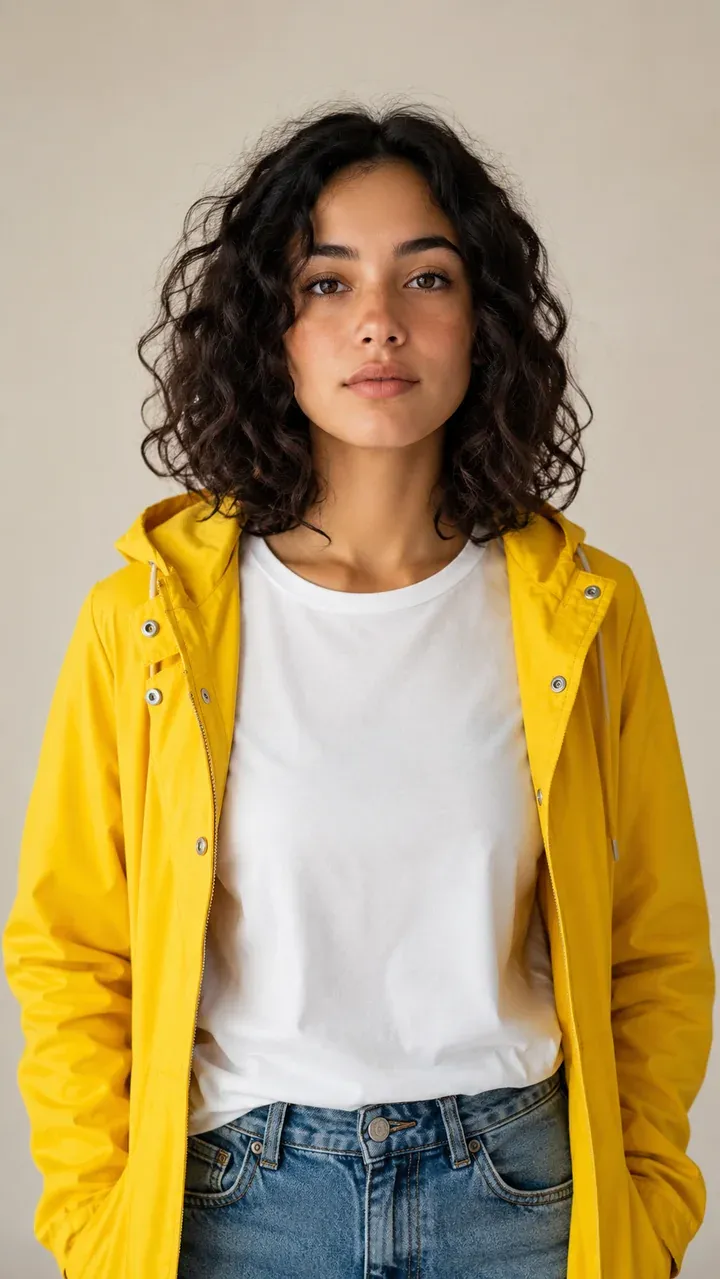
Mismatch input: the same character framed waist-up only, made with GPT Image 2 on Omnely (10 credits).
Limits test, Kling 3.0 Motion Control, 100 credits: a waist-up image driven by a full-body dance stays a close crop, the side steps turn into a sway and the hands leave the frame during the overhead claps.
Kling 3.0 Motion Control, waist-up input, full-body reference, 720p, 5 s, 100 credits. The output keeps the close waist-up crop of the character image. The side steps collapse into a shoulder sway (there are no legs in the image to step with), and the hands leave the top of the frame during the overhead claps. Kling's own rule applies cleanly: match half-body with half-body, and full-body with full-body (Kling Motion Control user guide).
Other documented failure modes to design around:
- Multiple people in the reference — the system expects one primary subject.
- Heavy occlusion — a person walking behind furniture or holding large props in front of the body.
- Fast spins or flips — the model may shorten or degrade the output.
- Camera cuts and strong camera moves — one continuous take is safer.
- Extreme poses — upside-down, lying flat, or crouched-and-blocked.
- Very fast motion — Kling notes outputs may be truncated.
Tip: if hands leave the frame in the output, the fix is almost always in the image, not the prompt. Re-render the character with more headroom and the same pose, then re-run motion control.
Other ways to animate a character on Omnely
Motion control is specifically for copying a motion. For other animation jobs, the video workspace offers different tools — none of them are motion control, so do not expect them to lock onto a reference performance:
- Kling 3.0 in the regular Generate tab handles text-to-video and image-to-video, standard and Pro, 3 to 15 s, with optional audio.
- Wan 3.0 accepts first/last frames and up to 10 image, 5 video and 5 audio references, 2 to 30 s, 720p at 16 credits per second.
- MiniMax H3 Beta supports text-to-video, first/last frames, and multimodal image, video and audio references.
- FLUX 3 Video Beta animates a single image, chains multi-keyframe storyboards, and does video continuation.
These models animate a character — but they invent the motion. If the goal is to reproduce a specific dance, gesture or sports move, motion control is the one that does that.
FAQ
How long can the reference video be?
Between 3 and 30 seconds. The output length follows the reference video — there is no separate duration picker in the Motion Control tab.
Does Kling motion control copy facial expressions?
Yes. In the raincoat test, the character's neutral expression from the still image became a broad smile in the output because the dancer in the reference clip was smiling. Expressions transfer along with body movement.
Can it handle two people in the reference video?
Not reliably. Kling's documentation calls out single-subject references as the supported case, and multiple people in the reference are listed as a failure mode (Kling user guide).
How do 720p and 1080p compare in credits?
Kling 3.0 Motion Control is 20 credits per second at 720p and 30 credits per second at 1080p. Kling 2.6 Motion Control is 12 and 18. A 5 s clip at 1080p on Kling 3.0 is 150 credits; on Kling 2.6 it is 90.
Why are the hands getting cut off at the top of the frame?
Usually the character image has too little headroom. The output keeps the input image's framing, so if the hat or head is already near the top edge, overhead claps have nowhere to go. Re-render the character image with more headroom and re-run.
---
To reproduce this test on Omnely, open the Motion Control tab, upload the raincoat character image, upload the 5-second dance reference clip, paste the raincoat prompt from the top of this post, pick Kling 3.0 Motion Control at 720p, and generate — 100 credits. New users get free credits when they sign up, and Kling Motion Control needs a paid Omnely plan. Open the Omnely video workspace and pick the Motion Control tab to transfer a move. For regular text-to-video and image-to-video, see Kling 3.0 on Omnely.