Can ChatGPT Make Videos? Start With GPT Image 2, Then Veo or Kling
Can ChatGPT make videos? Not on its own. Generate a still with GPT Image 2 on Omnely, then animate it with Veo 3.1 Fast or Kling 3.0, with a real worked example and credit costs.
So, can chatgpt make videos on its own? Not as of 6 October 2026. ChatGPT writes scripts, shot lists, and prompts, and it generates still images, but it does not render MP4 video. OpenAI's Sora product has been discontinued, and the newer ChatGPT Images 2.5 release is an image model, not a video model. This post shows the practical workflow that does work: generate the still with GPT Image 2 on Omnely, then animate that exact frame with Veo 3.1 or Kling 3.0. Credit costs and a real worked example are included below.
Can ChatGPT make videos in 2026?
No. The ChatGPT chat window itself does not output a video file. It is a text-and-image surface. What it is genuinely useful for in a video workflow is pre-production:
- Writing a treatment, logline, or two-paragraph scene description
- Breaking a script into a shot list with durations and camera moves
- Drafting the actual prompt you will paste into a video model
- Generating a still image to use as the start frame of a clip
Some "apps" surfaced inside ChatGPT can accept a request and route the render out to another company's video service. In that case ChatGPT is a chat interface in front of someone else's video model — the render happens outside the ChatGPT runtime, under a separate account and billing. That is a different thing from ChatGPT making the video itself.
The cleanest answer to "can chatgpt make videos" today is: ChatGPT writes the plan and the prompt; a dedicated video model makes the clip.
What happened to Sora
Sora was the OpenAI video product, accessed through sora.com and the Sora app rather than through the ChatGPT chat. It has been wound down.
| Product | Status (6 Oct 2026) | Date |
|---|---|---|
| ChatGPT chat | Live — text + stills, no video render | ongoing |
| Sora web + Sora app | Discontinued | 26 Apr 2026 |
| Sora 2 models + Videos API | Shut down | 24 Sep 2026 |
| ChatGPT Images 2.5 | Live — image model only | announced 8 Sep 2026 |
A few important consequences:
- Any guide that still answers "yes, use Sora" is out of date.
- ChatGPT Images 2.5 is a still-image upgrade (improved detail, lighting, textures, reference-subject preservation, editing). It is not a video generator.
- ChatGPT's image generation runs on OpenAI's GPT Image model family. Omnely offers GPT Image 2 from that family — a sibling model, not the ChatGPT product. Omnely is not ChatGPT and is not affiliated with OpenAI.
So the OpenAI side gives you planning + stills. For motion, you move to a video model.
The workflow on Omnely: still first, then motion
Rather than typing a long text-to-video prompt and hoping the model gets your composition right, generate a still first, then animate that still. There are three reasons this approach wins:
- Composition control. A still image is cheap to iterate. Fix framing, lighting, and subject position before paying for 8 seconds of motion.
- One frame, many clips. The same frame can start a Veo clip and a Kling clip. Compare motion styles without re-generating the scene.
- Consistency across shots. If you need a sequence, re-using the same still as a start frame locks the look.
The two workspaces on Omnely map directly to the two steps:
- Step 1 — Image workspace: generate the still with GPT Image 2. See the walkthrough in how to use GPT Image 2 for ratio and resolution tips.
- Step 2 — Video workspace: load the still as the start frame, pick Veo 3.1 Fast or Kling 3.0, and render. The Kling image to video guide covers the Kling side in depth.
Optionally, use any chat assistant (on Omnely or elsewhere) to draft the shot list and the two prompts before you open the Image workspace. That is where ChatGPT genuinely helps.
Worked example: one still, two clips
Below is a real run from 6 Oct 2026 on Omnely. Total cost: 122 credits = $1.22 (1 credit = $0.01).
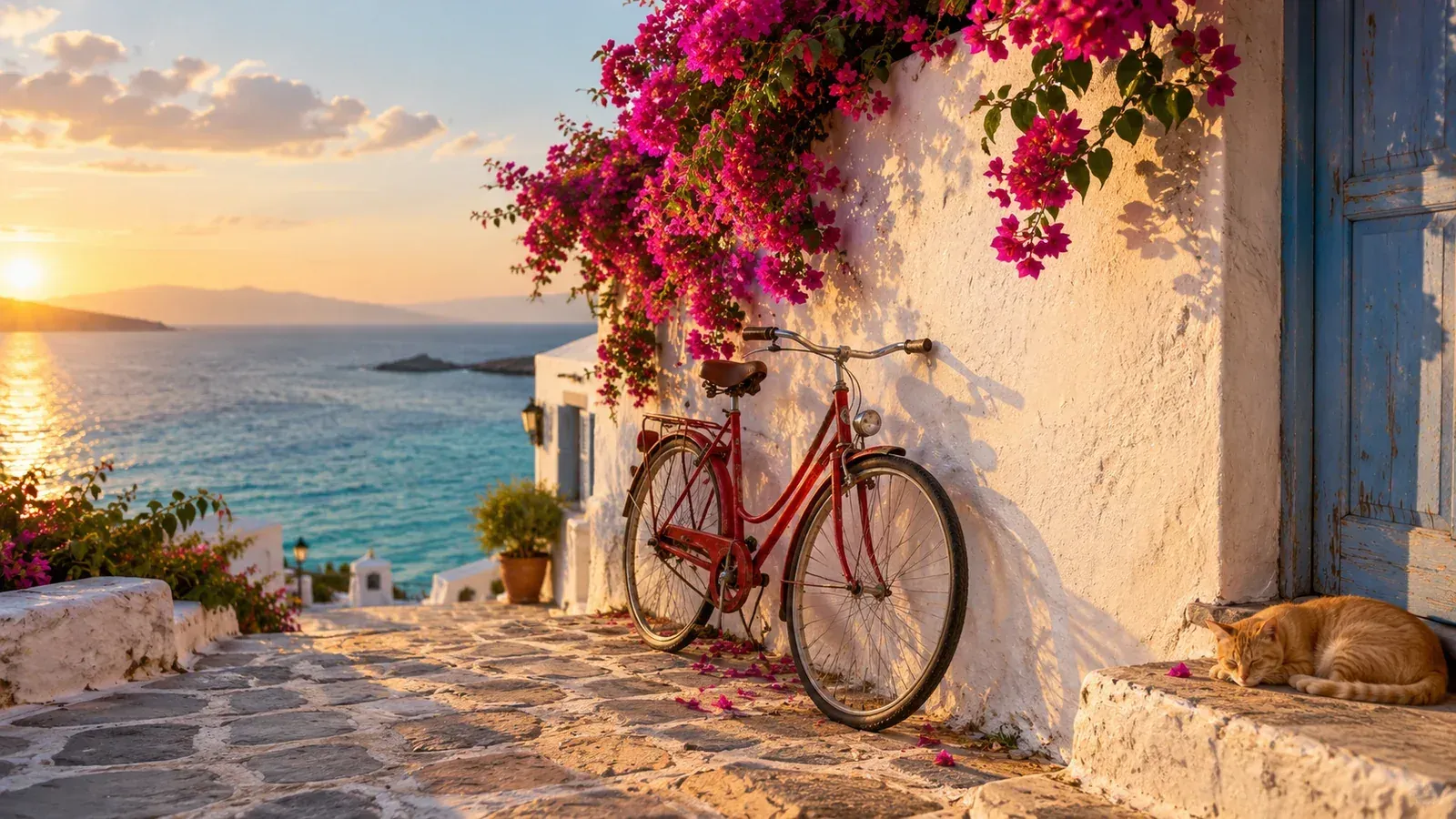
Step 1 — The still (GPT Image 2)
Open the Image workspace, pick GPT Image 2, Text to Image, aspect 16:9, resolution 1K.
Photorealistic wide shot of a red vintage bicycle leaning against a whitewashed wall in a quiet coastal village at golden hour. Magenta bougainvillea spills over the wall, a ginger cat sleeps on the stone doorstep, and a calm turquoise sea glints in the background under a few soft clouds. Warm low sunlight from the left, long soft shadows, 35mm lens look, natural colors, fine texture on the plaster and stone. No people, no text, no watermark.
Generated with GPT Image 2 on Omnely from the prompt above (16:9, 1K, 10 credits).
Settings: GPT Image 2, Text to Image, 16:9, 1K → 10 credits ($0.10).
Step 2A — Animate with Veo 3.1 Fast
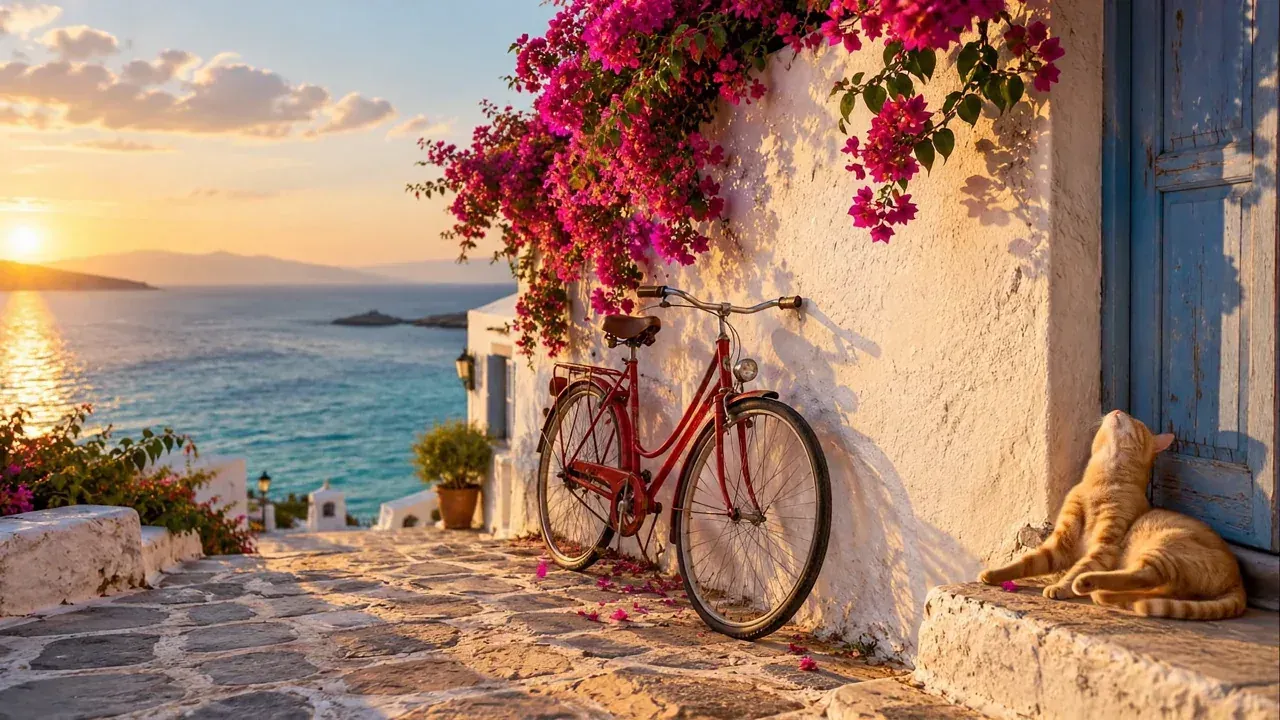
In the Video workspace, pick Veo 3.1 Fast, load the still above as the start frame, aspect 16:9, resolution 720p. Clips are always 8 seconds.
Animate this exact scene. A gentle sea breeze moves the bougainvillea petals and a few petals drift down past the bicycle. The ginger cat slowly lifts its head and stretches. Small waves roll in and sparkle on the sea in the background. Slow, subtle camera push-in toward the bicycle. Warm golden-hour light stays consistent. Ambient sound: soft waves, light wind, distant seagulls. No text, no people.
Frame from the 8-second Veo 3.1 Fast image-to-video clip on Omnely, with native audio (16:9, 720p, 40 credits), using the still above as the start frame.
Settings: Veo 3.1 Fast, image-to-video, 16:9, 720p, 8 s, native audio → 40 credits ($0.40).
Step 2B — Animate with Kling 3.0
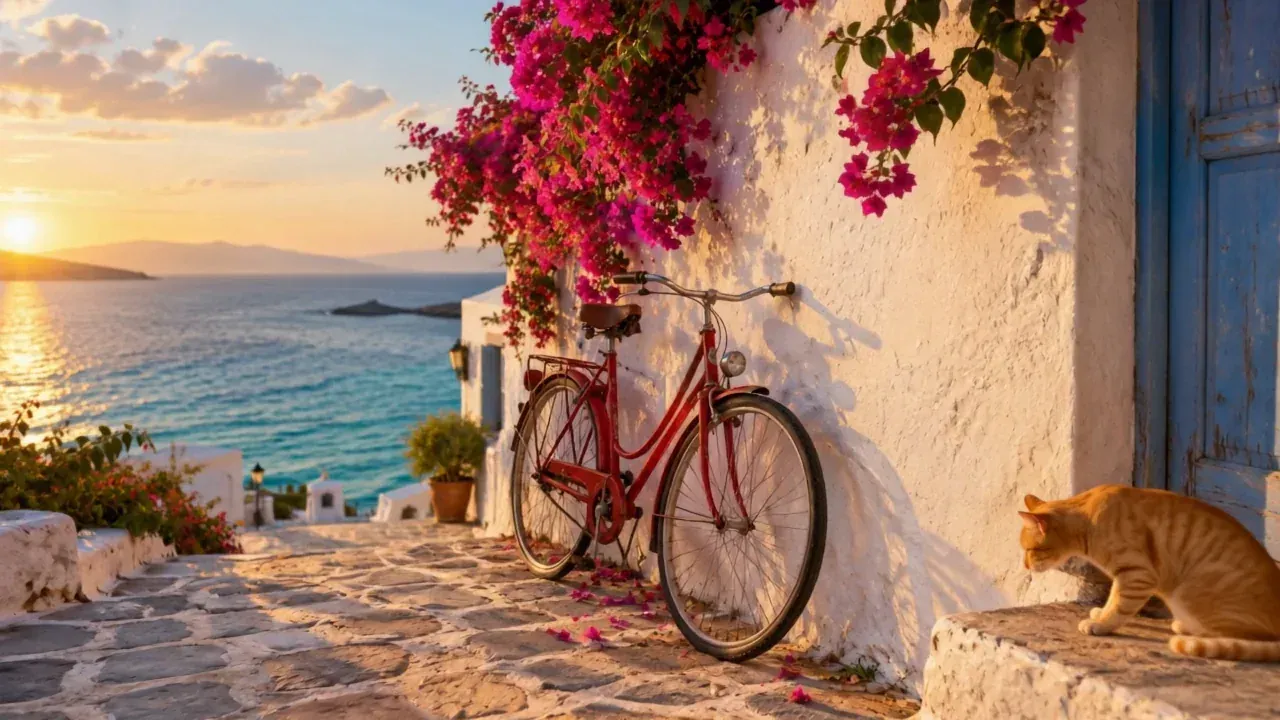
Same still, same prompt — just a different model. In the Video workspace, pick Kling 3.0, load the still as the start frame, aspect 16:9, mode std, sound on, duration 4 s.
Animate this exact scene. A gentle sea breeze moves the bougainvillea petals and a few petals drift down past the bicycle. The ginger cat slowly lifts its head and stretches. Small waves roll in and sparkle on the sea in the background. Slow, subtle camera push-in toward the bicycle. Warm golden-hour light stays consistent. Ambient sound: soft waves, light wind, distant seagulls. No text, no people.
Frame from the 4-second Kling 3.0 std image-to-video clip on Omnely, sound on (16:9, 72 credits), using the same still and prompt.
Settings: Kling 3.0 std, image-to-video, 16:9, 4 s, sound on → 72 credits ($0.72) (18 credits/sec × 4 s).
Totals
| Step | Model | Settings | Credits | USD |
|---|---|---|---|---|
| Still | GPT Image 2 | 16:9, 1K | 10 | $0.10 |
| Clip A | Veo 3.1 Fast | 720p, 8 s, 16:9 | 40 | $0.40 |
| Clip B | Kling 3.0 std + sound | 4 s, 16:9 | 72 | $0.72 |
| Total | 122 | $1.22 |
Two different motion treatments of the same scene for under $1.25.
Veo 3.1 or Kling 3.0: which to pick
Both are strong image-to-video models with native audio. They differ on duration, resolution options, and price curve.
| Spec | Veo 3.1 Fast | Kling 3.0 |
|---|---|---|
| Duration | Fixed 8 s | 3–15 s |
| Aspect | 16:9, 9:16 | 16:9, 9:16, 1:1 |
| Resolution / mode | 720p, 1080p, 4K | std or pro mode |
| Audio | Native, synchronized | On by default, optional |
| Start/end frame | 1 or 2 frames | 1 or 2 frames |
| 8 s clip, silent | n/a (audio is native) | 96 credits (std, 12/s × 8) |
| 8 s clip with sound | 40 credits (720p) | 144 credits (std, 18/s × 8) |
| 8 s at 1080p | 80 credits | — (priced by mode, not resolution) |
| 8 s at 4K | 360 credits | — |
| Short clip, sound on | — | 72 credits for 4 s std |
| Pro mode | — | 17/s silent, 24/s with sound |
Rules of thumb:
- Need audio and a fixed 8-second shot? Veo 3.1 Fast at 720p is the cheapest route (40 credits).
- Need a shorter or longer clip, or a square 1:1 frame? Kling 3.0 is more flexible on duration and aspect.
- Need 1080p or 4K with audio? Veo 3.1 Fast at 1080p is 80 credits; 4K is 360.
- Need the highest-fidelity Veo render for a hero shot? Veo 3.1 Quality is also in the Video workspace at 80 credits for the default 8 s clip.
- Want a third motion take at native 2K? MiniMax H3 on Omnely also does first/last-frame image-to-video with built-in audio, at 8 credits per second at 768P or 13 credits per second at native 2K, for 4–15 s clips.
For a longer side-by-side, see Kling vs Veo 3.
Prompt tips for image to video
A good image-to-video prompt is not a second copy of the still prompt. The still already defines the scene. The video prompt describes change over time.
- Describe motion only. "A petal drifts down past the bicycle" is useful. "A red bicycle in a village at golden hour" is noise.
- One camera move per clip. Pick push-in, orbit, tilt, or static. Mixing moves inside a short clip usually produces mush.
- Keep light consistent. State "warm golden-hour light stays consistent" or similar so the model does not drift the color temperature mid-clip.
- Add a sound cue line. Both Veo and Kling accept short ambient-sound hints — "soft waves, light wind, distant seagulls" is enough.
- Name what should not happen. "No text, no people, no camera shake" trims common failure modes.
- Start cheap, then upscale settings. Find the motion on Veo 3.1 Fast at 720p (40 credits) or a 4 s Kling 3.0 std clip (72 credits with sound). Once the motion is right, re-run Veo at 1080p or extend the Kling duration.
The still itself is also a lever. A clean, well-lit frame from GPT Image 2 produces better motion than a cluttered one. For a deeper walkthrough of still-prompting, see how to use GPT Image 2.
FAQ
Does ChatGPT have a video model after Sora?
Not as a native chat feature. ChatGPT writes scripts, shot lists, and prompts, and ChatGPT Images 2.5 (announced 8 Sep 2026) is a still-image model. The Sora web and app were discontinued on 26 Apr 2026, and the Sora 2 Videos API was shut down on 24 Sep 2026.
Can a ChatGPT "app" generate a video for you?
Some third-party apps surfaced inside ChatGPT can route a request to another vendor's video service. The render runs on that vendor's infrastructure, under their account and billing — ChatGPT is just the chat surface. That is different from ChatGPT making the video itself.
What is the cheapest way to go from a text idea to a short video with audio on Omnely?
Generate a 1K still with GPT Image 2 (10 credits), then animate it with Veo 3.1 Fast at 720p for an 8-second clip with native audio (40 credits). Total: 50 credits, or $0.50.
Ready to turn a prompt into a clip?
ChatGPT is excellent for planning the shot. For the actual render, open the Omnely Video workspace, drop in a still, and generate. Start with Veo 3.1 on Omnely for the fastest route to an 8-second clip with native audio, and keep Kling 3.0 open in another tab when you need a different duration, a 1:1 crop, or a second motion take of the same frame.
About the title card
The title card at the top of this post was also generated on Omnely with GPT Image 2 (16:9, 2K, 15 credits) from this prompt:
Wide 16:9 editorial title card for a blog post. Clean modern graphic design on a deep navy to teal gradient background, with a subtle film-strip and play-button motif on the right third and a faint still-photo frame turning into motion lines. Large, sharp, fully readable white sans-serif title text on the left, set on two lines exactly as: Can ChatGPT Make Videos? What Works on Omnely | Omnely. Perfect spelling, no extra words, no logos, no watermark, no UI chrome.